Showing posts with label WordPress Tutorials by WP101. Show all posts

Wednesday, 23 September 2020

How to Backup Your WordPress Site Easily Using BlogVault

How to Backup Your WordPress Site with BlogVault

Are you stressed out about losing your WordPress website data to a crash or getting hacked? Looking for an easy way to backup your WordPress site and put your worries to rest? Look no further than the BlogVault backup and migration plugin.

Backups are incredibly important and should be at the top of your website maintenance checklist. Why is that? Backups are your best bet against website downtime. In the event your website should break or crash, you can quickly restore it with a backup copy with minimal damage to your business and revenue.

There are dozens of WordPress backup plugins, but choosing the right one for your website can make all the difference. In this article, we discuss what to look for in a backup plugin, things to consider, and why we recommend BlogVault.

How Do You Choose the Right Backup Solution?

Two of the most common ways to backup a WordPress site are:

  1. Manual backups, or…
  2. Backup services provided by your web hosting company.

Manual backups can be time-consuming, and you’ll need a fair bit of WordPress technical know-how in order to backup both your content as well as your theme and plugin files. That’s why we prefer the backup solutions provided by the top Managed WordPress hosting companies. But not all hosting companies offer backup services, and some only provide backups with their premium plans.

So, if your hosting company does not include backups as part of your hosting service, we highly recommend that you use a dedicated WordPress backup plugin. A plugin automates the entire process for you, saving you both time and effort. You can install a backup plugin, just like you would any other WordPress plugin. The top WordPress backup plugins are designed to make it a breeze to create backups and restores with almost no intervention on your part.

So, what should you look for in a backup plugin?

  • Complete backups that include both website and database files.
  • Custom scheduling for automatic daily, weekly, or monthly backups without your intervention.
  • Efficient backup techniques that don’t overload your web server or slow down your site.
  • Off-site backups in a safe, independent location, so your backup files aren’t lost by whatever is impacting your site.
  • Encrypted backups that ensure that your backup data cannot be compromised by unauthorized users.
  • Independent dashboard and access for both backup and restore operations.
  • Support for backing up multiple websites from a single dashboard or location.
  • Real-time backups each time you make any changes to your website — a critical feature for WooCommerce sites.
  • Guaranteed backup recovery to quickly restore your website with minimal downtime.
  • Reliable customer support you can depend on in an emergency!

Most backup plugins offer some combination of these features. But very few provide all of them. That’s why we recommend BlogVault.

Why Use BlogVault for Backups?

BlogVault is a trusted WordPress backup and restore solution that has restored over 1 million websites worldwide with a 100% success score in backup restores! It offers all the features you need in a backup plugin, plus some additional features that place it ahead of other backup plugins.

BlogVault’s features include:

  • Incremental and low-load backups, performed on BlogVault’s dedicated servers thus, putting zero load on your website server.
  • Auto Restore functionality that automatically restores the latest backup of your WordPress site in case of a crash.
  • Test Restore functionality that enables you to first test a backup file on a staging site before restoring it to your live website. This feature ensures that you only use a safe and functional backup file.
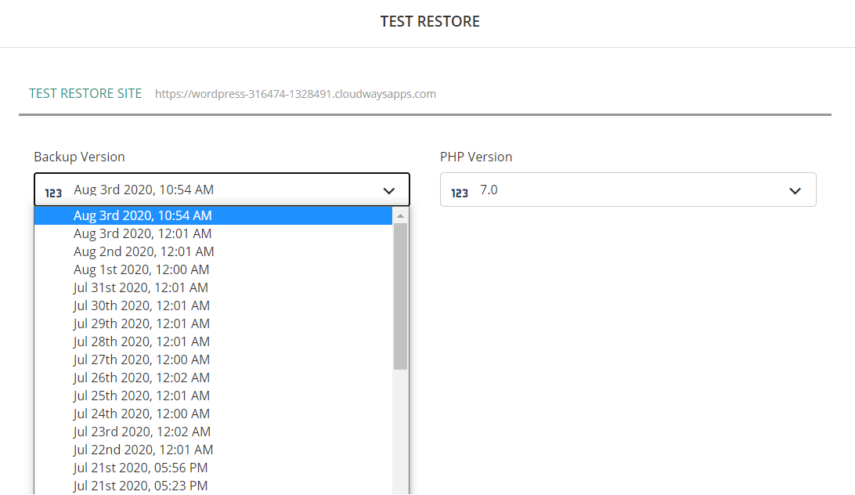
Test Restore in BlogVault

The Test Restore Feature in BlogVault

Plus, BlogVault includes these additional features:

  • Built-in website staging at no additional cost. This provides an automated, one-click method to set up a staging environment on BlogVault’s own servers to test any design changes or updates to your plugins/themes. What’s more? Once you have tested and are satisfied with the changes, you can merge them from the staging site to your live website, with just a few clicks.
  • Built-in website migration that is also 80% faster. You can easily migrate your website to over 5,000 supported web hosts with zero downtime during the migration!
  • Real-time backups for WooCommerce sites that are easy to configure on the BlogVault dashboard. BlogVault also includes backups of custom database tables used in WooCommerce sites.
  • Efficient website management using the centralized BlogVault dashboard where you can manage backups for multiple websites. Website management features include bulk updates of the core WordPress software, plugins, and themes across various sites, along with efficient user management.
  • Responsive customer support that responds to customer queries within a maximum of 24 hours.

So, how do you perform a backup using BlogVault?

How to Backup and Restore Your Site Using BlogVault

One of BlogVault’s key strengths is its interface, which can be used by WordPress beginners and seasoned WordPress developers who build and manage sites for WordPress clients. BlogVault’s dashboard is easy to use and specifically designed to get things done in a matter of a few clicks.

To start using BlogVault, you’ll need to first sign up on their website, then install and activate the BlogVault plugin on your WordPress website.

  1. Sign in to your BlogVault dashboard with your registered user credentials.
  2. Once you’ve installed and activated the BlogVault plugin, it will automatically create a complete backup of your site.
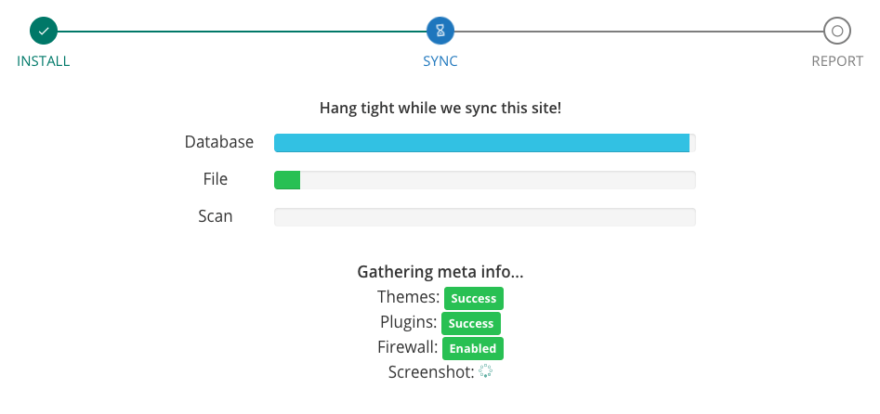
BlogVault Syncing a WordPress Site

BlogVault Syncing a WordPress Site

That’s it! That’s all you need to do. BlogVault automatically creates the backup on its own.

From your BlogVault dashboard, you can schedule your backups, depending on your website’s needs. Or, you can create a backup anytime you want by clicking “Backup Now” in the Backups section.
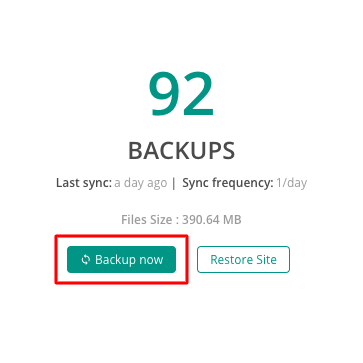
Creating a Backup in BlogVault

Creating a Backup in BlogVault

Now, for the important part. A backup tool is only as good as its ability to restore your site when you need it. With BlogVault, this is a breeze.

The easiest method is to use the “Auto Restore” functionality by signing into the dashboard and clicking “Auto Restore” in the “Backup” section. This restores the latest backup version to your configured website.
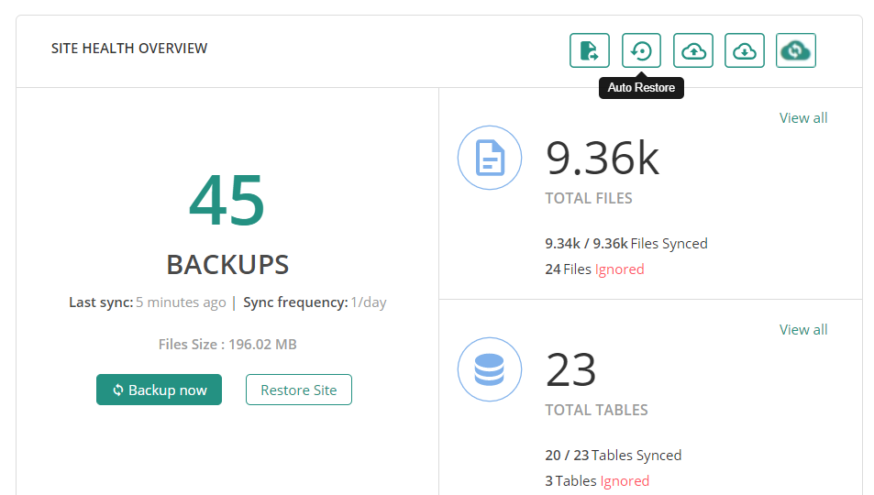
Restoring a Backup in BlogVault

Auto-restoring a Backup in BlogVault

Backups are critical in restoring your website in the event of a crash or hack. While there are different ways to create a backup of your WordPress site, we recommend using a backup plugin that is specifically designed for WordPress to save you considerable time and effort.

And if you’re looking for a backup tool that gives complete peace of mind, we recommend BlogVault. It’s packed with features like secure backup and restore, incremental backups, integrated and no-cost website staging and migration.

So, if you’re looking to get started, you can sign up for a free trial and try it out for yourself.

Visit BlogVault Now

How to Backup Your WordPress Site Easily Using BlogVault appeared first on WP101.com


from WordPress Tutorials by WP101 https://ift.tt/3cpQyRn
Https://mwktutor.com/

Thursday, 10 September 2020

WordPress 101 is all new for WordPress 5.5!

WordPress 101 Tutorial Videos for WordPress 5.5

Our highly-popular WordPress 101 course is all-new, every video updated and re-recorded to cover the latest enhancements in WordPress 5.5. See what’s new!


Later this month, we’ll celebrate our 11th anniversary, and since we launched in 2008, we’ve updated and re-recorded the WordPress 101 videos a whopping 26 times.

WordPress 5.5 “Eckstine” brought a long list of exciting new features for the block editor, including an all-new block directory, and the introduction of block patterns, which make it easy to create complex, beautiful layouts, using pre-built combinations of text and media blocks that you can mix and match to create your pages and posts even more quickly.

You’ve probably already noticed some significant changes to the WordPress editing experience on your own site.

So, we’ve completely updated and re-recorded every video in the WordPress 101 course, covering all the latest new features and enhancements.

If it’s been a while since you’ve checked out the WordPress 101 videos, why not swing by and see what’s new?


WordPress 5.5 includes even more enhancements to the Block Editor in WordPress. See what’s new in the WordPress 101 video tutorial series by @WP101!
Click To Tweet


View the WordPress 101 Course Outline

Ready to check out the all-new WordPress 101?

We think you’re going to love creating content with the updated Block Editor in WordPress 5.5, but it definitely comes with a learning curve.

Whether you’re building a personal blog, a business site for your company, or even an online store, this course will teach you all the fundamentals of how to use WordPress to build your own website — in about two hours.

By the end of this course, you’ll know how to create and manage your own WordPress website. You’ll learn how to use the Block Editor in WordPress to create media-rich custom layouts. And you’ll be comfortable adding images, and using the Customizer to personalize the design of your site.

But best of all… you don’t have to learn in a vacuum. Every day, our WordPress educators answer WordPress questions from our members in our help forum. So when you need help, just reach out and we’ll do our best to get you back on your way.

Ready to get started? Check out the all-new WordPress 101 course outline, then watch the first seven videos for FREE. See you in the course!

WordPress 101 Course Page

WordPress 101 is all new for WordPress 5.5! appeared first on WP101.com


from WordPress Tutorials by WP101 https://ift.tt/33f3ky1
Https://mwktutor.com/
Tuesday, 30 June 2020

How to Speed up Your WordPress Site with WP Rocket

WP Rocket Course on WP101

New Course: Speed up Your WordPress Site in a Few Clicks with WP Rocket

Does your WordPress site load slowly? Do you want to learn how to speed up your WordPress site with just a few clicks? If so, you’re in the right place!


WordPress is the most popular web publishing software on the planet. But if you visit many WordPress websites, you’ll quickly notice that they often load very slowly. And did you know that more than half of your visitors will leave if your website doesn’t load within ​three seconds?

Making matters worse, a slow-loading site will also impact your ranking in search engine results. If your site loads slowly, it’ll rank lower, and that means fewer visitors to your site. If you run an e-commerce site, that means less revenue.

Over the years, one of the most frequent questions we’ve heard from our members is, “How do I make my WordPress site load faster?”

That used to be tricky to answer. You could speed up your WordPress site by adding more resources to your web server, or migrating to a better Managed WordPress host. Or, you can use a CDN, a more lightweight theme, or remove any large images from your site. Maybe then your WordPress site would load more quickly. Right? But how realistic is that?

Thankfully, that’s where WP Rocket comes in.

Speed up Your WordPress Site with WP Rocket


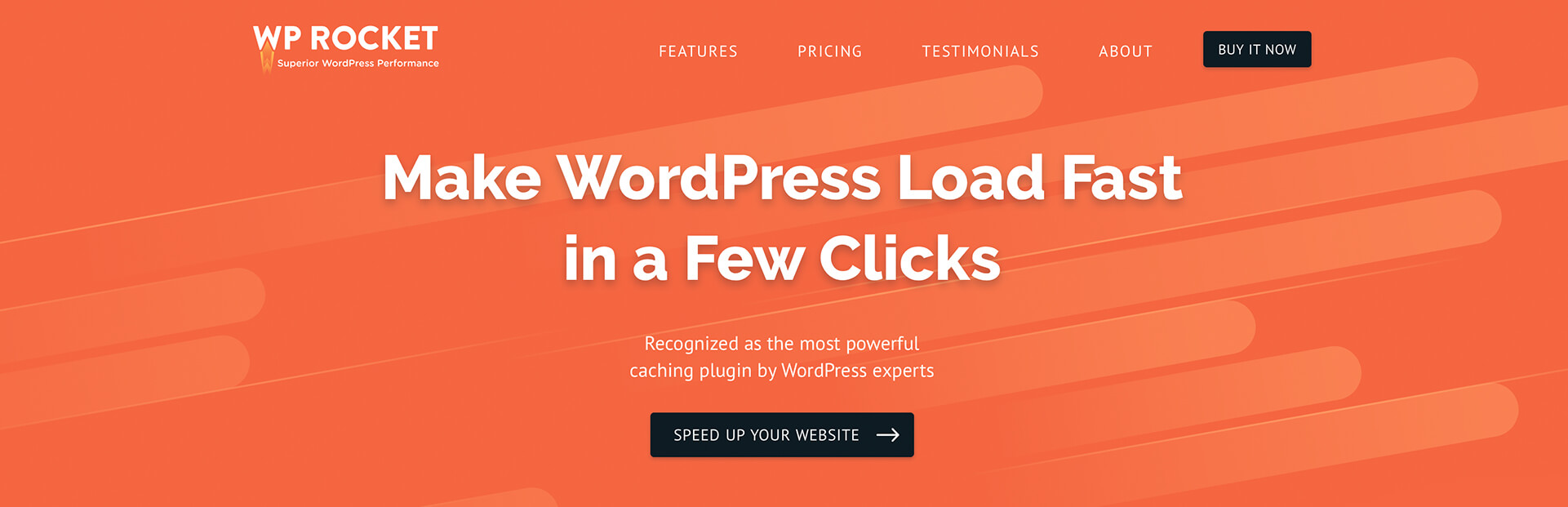
WP Rocket is the best caching plugin for WordPress, and the ​easiest​ way to make your WordPress site load faster, with just a few clicks. And, unlike other caching plugins, you don’t need to be a rocket scientist to get up and running. In fact, you can set up WP Rocket in less than 3 minutes!


You don’t have to waste hours of your time, testing dozens of complicated settings. As soon as you activate the WP Rocket plugin, it ​automatically​ applies 80% of web performance best practices, ​even before you’ve enabled any options!

With WP Rocket activated on your WordPress site, you’ll notice instantly faster page load times. But you can also dive in a little deeper and customize the settings to get the absolute best performance for your site.

Oh, and there’s one more important thing to note about WP Rocket. Most Managed WordPress hosts block you from installing caching plugins on your WordPress site, because most of them interfere with their own server-level caching. But not WP Rocket. It’s the only caching plugin accepted by the top Managed WordPress hosts. That’s why today we only use and recommend one caching plugin for WordPress: WP Rocket

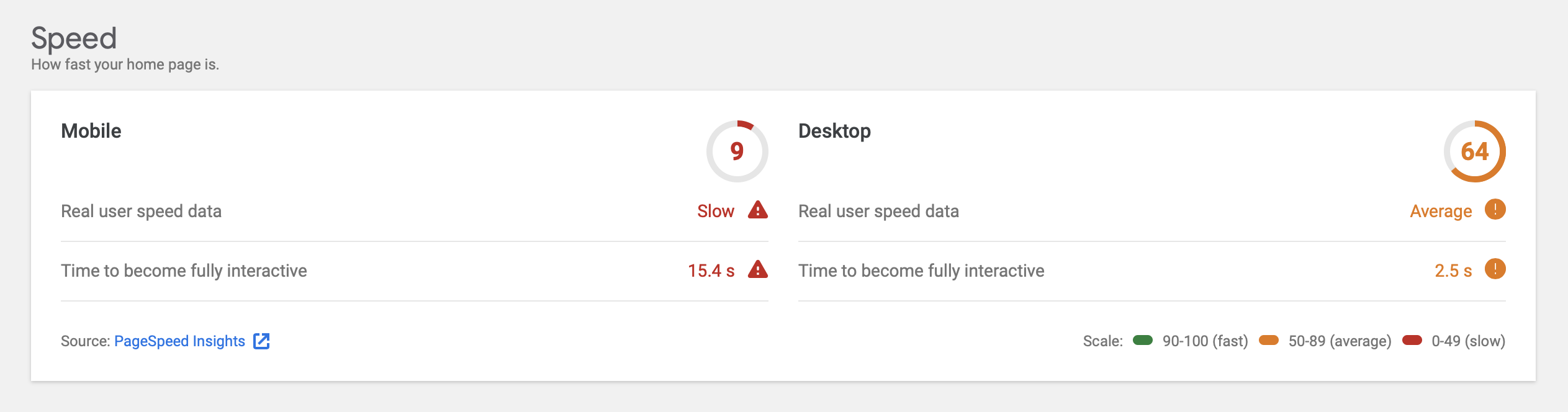
In fact, check out our page speed test results before & after activating WP Rocket on this site:

WP101 Page Speed Test Before Activating WP Rocket

Actual page speed test results of this site before activating WP Rocket.

WP101 After Activating WP Rocket

Page speed test results for this site after activating WP Rocket. Still some work to do on mobile, but what a huge improvement!


Last year, we partnered with the WP Rocket team to create this 10-part video tutorial series, and today, we’re thrilled to make it available to our members!

In this easy, 30-minute course, you’ll learn:

  • Why WP Rocket is the best caching plugin for WordPress.
  • How to download, install, and configure WP Rocket.
  • The best settings to speed up your WordPress site with WP Rocket.
  • How to test that WP Rocket is caching your site.
  • How to measure the speed of your site.
  • How external content slows your site down.
  • How to troubleshoot display issues with WP Rocket.
  • How to exclude certain JavaScript files from being cached.
  • How to set up the Cloudflare add-on in WP Rocket.
  • How preloading works in WP Rocket your site load faster.
  • Plus, much more!

Check out the introductory video…


Best of all, this new course is FREE for All-Access Pass members!

If you already have an All-Access Pass, first log into your account, then visit the WP Rocket 101 course description page, then click the large, green button that says, “Take This Course.” That’s it! You don’t need to purchase anything else. Once you’ve enrolled in the new course, it will appear in your My Courses page.

Don’t have an All-Access Pass yet?

Purchase an All-Access Pass today and you’ll get this new course, plus all of our other courses! In addition to WordPress basics, you’ll also learn how to optimize your site for search engines, sell products from your website, create custom forms, and much more. Get your All-Access Pass today!

Check out the WP Rocket 101 course outline:

View Course Outline

How to Speed up Your WordPress Site with WP Rocket appeared first on WP101.com


from WordPress Tutorials by WP101 https://ift.tt/38gBgME
Https://mwktutor.com/

Tuesday, 31 March 2020

Learn How to Use BigCommerce for WordPress to Sell Products on Your Site

BigCommerce Video Tutorials by WP101®

First, a personal note:

Like you, we’re navigating these unprecedented times to the best of our ability. We’re staying home and everything is on lockdown right now, while we continue to monitor the ongoing health crisis and do our part to help out in any way we can.

Thankfully, our team has always been remote, so we’re continuing to create courses and answer your questions in our WordPress help forum. We’re continually looking for ways to help you make the most of this quarantine time.

So, today we’re happy to release a brand new course that will help you sell products from your WordPress site. If there is anything else we can do to help you during this time, please feel free to reach out anytime.

New Course! BigCommerce for WordPress

Do you want to start selling products on your WordPress website without bogging down your page load times, or buying dozens of expensive add-ons? Looking for an alternative to WooCommerce? In our newest course, we’ll show you how to use BigCommerce for WordPress so you can start selling products on your WordPress site in about 30 minutes.


BigCommerce Product Backend

WordPress is the most popular content management system on the planet, and it provides a fantastic way to manage your website. But WordPress wasn’t designed for ecommerce. And with dozens of ecommerce plugins available for WordPress, where do you begin? It’s easy to become overwhelmed with decisions about how to manage your inventory, accept payments, process orders, handle shipping, security, hosting, performance… and the list goes on.

That’s where BigCommerce for WordPress comes in.

BigCommerce Logo

BigCommerce is a specialized ecommerce platform. BigCommerce handles all the heavy lifting so you can focus on growing your business. And, with BigCommerce for WordPress, you can bring all this power directly to your WordPress site.


Once the plugin is installed, BigCommerce takes care of all the important aspects of ecommerce for your WordPress site. Right out of the box, you get a robust set of tools to help you sell products from your site, without having to worry about complicated PCI compliance, processing credit cards, or slowing down your website!

With BigCommerce for WordPress, you can focus on creating content and a stellar customer experience, while BigCommerce works in the background, making sure your store always runs at its best.

Blazing fast ecommerce that doesn’t slow down your site.

Displaying products to your site visitors and processing concurrent orders shouldn’t slow down your site. But this is the #1 problem for ecommerce site owners, and it can be costly. BigCommerce solves this problem by offloading the most intensive processes to their dedicated servers, freeing your own web server’s resources so you can handle high traffic, without slowing down your WordPress site.

With BigCommerce for WordPress, you get a powerful, PCI-compliant, ecommerce platform that loads incredibly fast, whether you’re selling one product — or thousands. BigCommerce handles the checkout process, so you don’t have to worry about security or PCI compliance.

We partnered with BigCommerce to create this simple, 13-part introduction to BigCommerce for WordPress.

In this easy, 30-minute course, you’ll learn:

  • Why BigCommerce is the best ‘headless’ ecommerce solution for WordPress.
  • How to download, install, and configure BigCommerce for WordPress.
  • How to add products to your BigCommerce store.
  • How to import a list of existing products into BigCommerce.
  • How to display your product catalog on a page or post.
  • How to customize the colors and layout of the product catalog.
  • How to create custom child templates for BigCommerce.
  • How to launch your BigCommerce store.
  • The major differences between WooCommerce vs. BigCommerce.
  • How to migrate from WooCommerce to BigCommerce.
  • Where to get expert help for BigCommerce.
  • Plus, much more!

Check out the introductory video…


Best of all, this new course is FREE for All-Access Pass members!

If you already have an All-Access Pass, first log into your account, then visit the BigCommerce 101 course description page and click the large, green button that says, “Take This Course.” That’s it! You don’t need to purchase anything else. Once you’ve enrolled in the new course, it will appear in your My Courses page.

Don’t have an All-Access Pass yet?

Purchase an All-Access Pass today and you’ll get this new course, plus all of our other courses! In addition to WordPress basics, you’ll also learn how to optimize your site for search engines, sell products from your website, create custom forms, and much more. Learn more and get your All-Access Pass today!

Check out the BigCommerce 101 course outline:

View Course Outline

Learn How to Use BigCommerce for WordPress to Sell Products on Your Site appeared first on WP101.com


from WordPress Tutorials by WP101 https://ift.tt/3bGHQMS
Https://mwktutor.com/

Tuesday, 25 February 2020

Beaver Builder 101: Learn How to Create Any Page Layout You Can Imagine, in Minutes

Beaver Builder Video Tutorials by WP101®

Beaver Builder IconDo you feel limited by the page layouts in your WordPress theme? Want to learn how to create your own beautiful page layouts in minutes, using a simple, drag-and-drop page builder?

In this brand new course, Carrie Dils will show you how to use Beaver Builder to build just about any page layout you can imagine… without touching a single line of code.


Beaver Builder is one of the most popular page builder plugins for WordPress, and for good reason. Whether you’re a professional web designer who builds websites for clients, or a website owner who wants to create professional-looking pages for your business website, Beaver Builder enables you to design responsive WordPress page layouts using a simple, drag-and-drop interface.

With Beaver Builder, you can easily create columns, perfectly position images and text, and create content-rich pages that include things like tabs, slideshows, videos, and more. Plus, it works on the front end of your site, so the designs that you create are exactly what your visitors will see after you hit the Publish button!

We’re proud to partner with Carrie Dils, expert WordPress developer and educator, to bring you this simple, 13-part introduction to Beaver Builder.

In this easy, 45-minute course, you’ll learn:

  • What Beaver Builder is, what it does, and what problem it solves.
  • How to download, install, and configure Beaver Builder.
  • How to use rows and columns to create page layouts.
  • How to use ready-made site templates to quickly build starter pages.
  • How to create custom blog post and archive page layouts.
  • How to configure and use the various Beaver Builder modules.
  • How to use the Headings, Text Editor, and Photos modules.
  • How to create Callouts and Buttons in Beaver Builder.
  • How to create Contact and Subscribe Forms in Beaver Builder.
  • How to add and style a group of photos using the Gallery module.
  • How to add audio and video to your Beaver Builder pages.
  • Where to get help and go further with Beaver Builder.
  • Plus much more!

Meet your Instructor, Carrie DilsCarrie Dils

Carrie Dils is an expert WordPress developer and educator who has helped craft online identities for businesses since 1998, creating sites that look great on the outside and work well on the inside. The daughter of an educator and computer scientist, Carrie is dedicated to continually learning and teaching others as she goes. She blogs regularly about WordPress and the business of freelancing at CarrieDils.com. When she's not behind a computer, she's likely reading a book, running after her dogs, or taking an absurdly long walk.

We’re thrilled to welcome Carrie as our newest WP101 Instructor!

Check out the introductory video…

We think you’ll love Carrie’s friendly teaching style, and by the end of this course, you’ll be able to build custom page layouts for your WordPress site!

Best of all, this new course is FREE for All-Access Pass members!

If you already have an All-Access Pass, just log into your account, then visit the Beaver Builder 101 course description page and click the large, green button that says, “Take This Course.”

That’s it! You don’t need to purchase anything else. Once you’ve enrolled in the new course, it will appear in your My Courses page.

Don’t have an All-Access Pass yet?

Purchase an All-Access Pass today and you’ll get this new Beaver Builder course, plus all of our other courses!

In addition to WordPress basics, you’ll also learn how to optimize your site for search engines, sell products from your website, create custom forms, and much more. Learn more and get your All-Access Pass today!

Check out the Beaver Builder course outline:

View Course Outline

Beaver Builder 101: Learn How to Create Any Page Layout You Can Imagine, in Minutes appeared first on WP101.com


from WordPress Tutorials by WP101 https://ift.tt/2VlQqvz
Https://mwktutor.com/

Tuesday, 19 November 2019

How to Translate your WordPress Website in 5 Minutes with the Weglot Plugin

What is Weglot?

Many WordPress site owners have asked us how to translate their WordPress website and display it in multiple languages. But there are many translation plugins to choose from, and some can prove more challenging than others… especially for beginners.

Luckily, all that changes with Weglot – the best rated WordPress translation plugin on the WordPress Directory.

Weglot is the easiest and fastest WordPress translation plugin out there. It translates, displays and allows you to effortlessly manage and edit your translated website content, instantly.

This translation solution works with any WordPress theme or plugin – so there’s zero compatibility issues.

We’ll show you how in just 5 minutes, you’ll have a multilingual WordPress website up and running without the use of any code. Perfect for WordPress beginners and those that want a one-click translation solution.

Why translate your website?

If you’re an internationally minded entrepreneur or established company doing business online, it makes sense to tap into the 75% of the internet that doesn’t speak English.

Offering your website in more than one language is essential for many industries. And it makes even more sense if you’re an ecommerce entrepreneur, a tourism or travel provider, or if you offer digital products.

Website translation is one of the quickest ways to reach potential customers in new markets.

Studies suggest that 55% of people prefer to purchase in their own language and 60% of people rarely or never purchase products or services on English-only websites. So, having a multilingual website is quickly becoming a must-have if you want to keep up with the competition.

What’s the difference between Weglot and other WordPress translation solutions?

Simply put, Weglot allows you to have a fully multilingual website up and running in less than 5 minutes. This no-code tool is suitable for any level of WordPress experience.

There’s no finicky behind-the-scenes steps, no string-by-string manual translation, or manual creation of each page in each language. Just click install and Weglot does everything for you.

Weglot allows you to translate the whole of your WordPress site, no matter where the content is coming from. For example, you might have a review plugin installed on your WordPress site. For other WordPress translation solutions, this can prove problematic and require you to install additional plugins to work around this problem.

The way your translations are managed by Weglot is a completely hassle-free process, with just one dashboard needed. Unlike other WordPress translation solutions, Weglot doesn’t require that you master multiple different interfaces to manage different parts of your translated website content.

You can easily access all your translations, edit or approve the automated translation, or even order professional translations within the Weglot Dashboard and fine tune any language nuances.

Another popular feature of Weglot is their ‘in context’ editor, which lets your manage, edit and see all your website translations in a live preview of your site. Any edits you make here will automatically be implemented on your real website. It’s a great way to visually see your translations on the front-end of your site.

Weglot also automatically adds a simple language switcher to your site, which you can easily customize. You can change the design and placement without having to touch a line of code. Other WordPress translation solutions require additional code to add one to your site.

How to translate your website with Weglot in three easy steps:

As we mentioned above, installing Weglot on your site and having a live multilingual website up and running is a simple and quick process. Let’s take a look at just how easy it really is.

Step 1

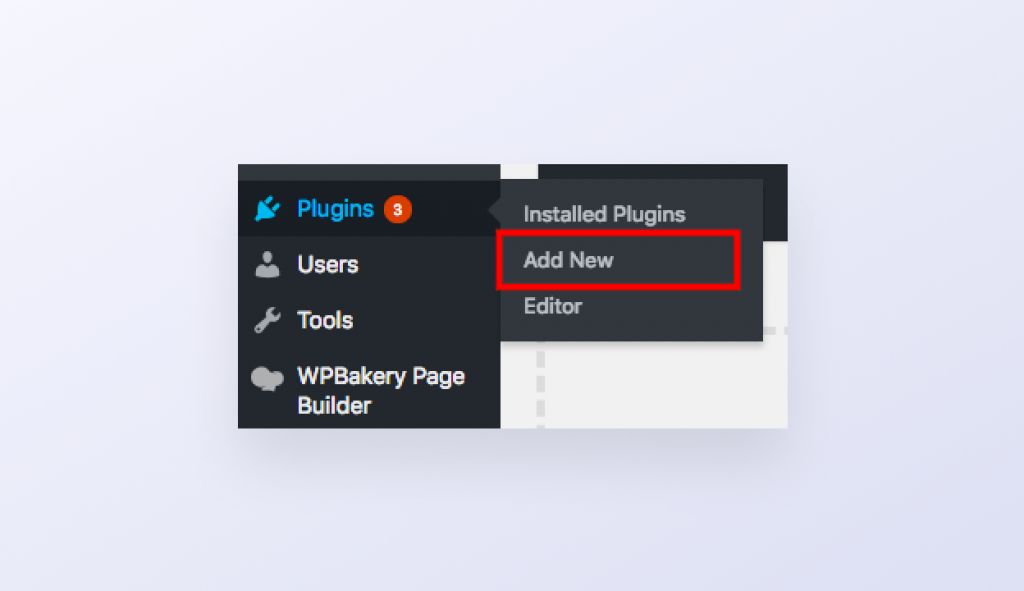
Go to your WordPress dashboard > ‘Plugins’ tab > ‘Add New’ and search for Weglot.

How to Install the Weglot Plugin

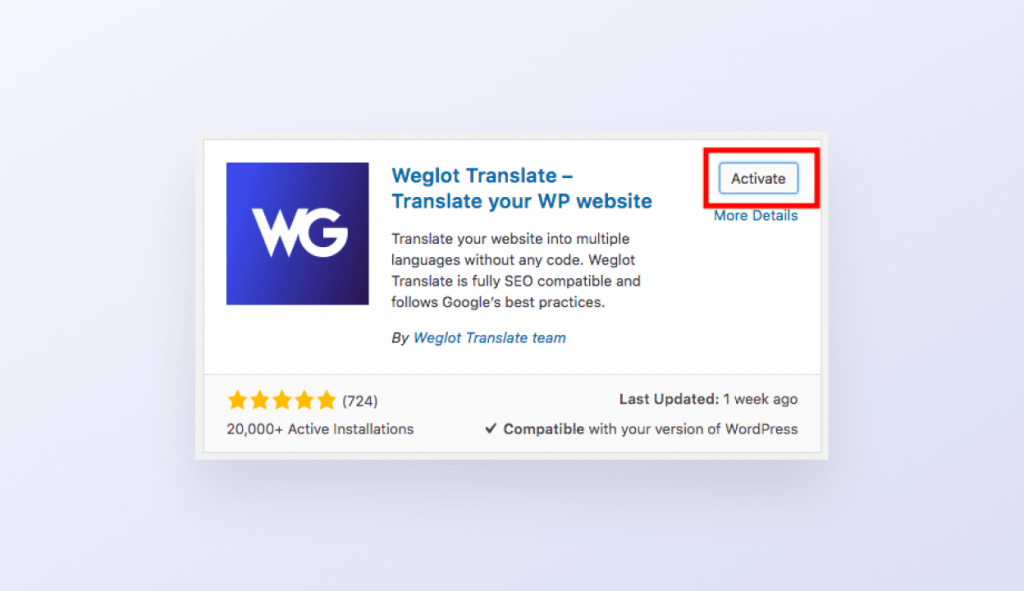
Click install. Once it’s been installed click on the activate button.

How to Activate the Weglot Plugin

You’ll now see a Weglot tab within your WordPress dashboard. Click on the Weglot tab to finalize your configuration.

Step 2

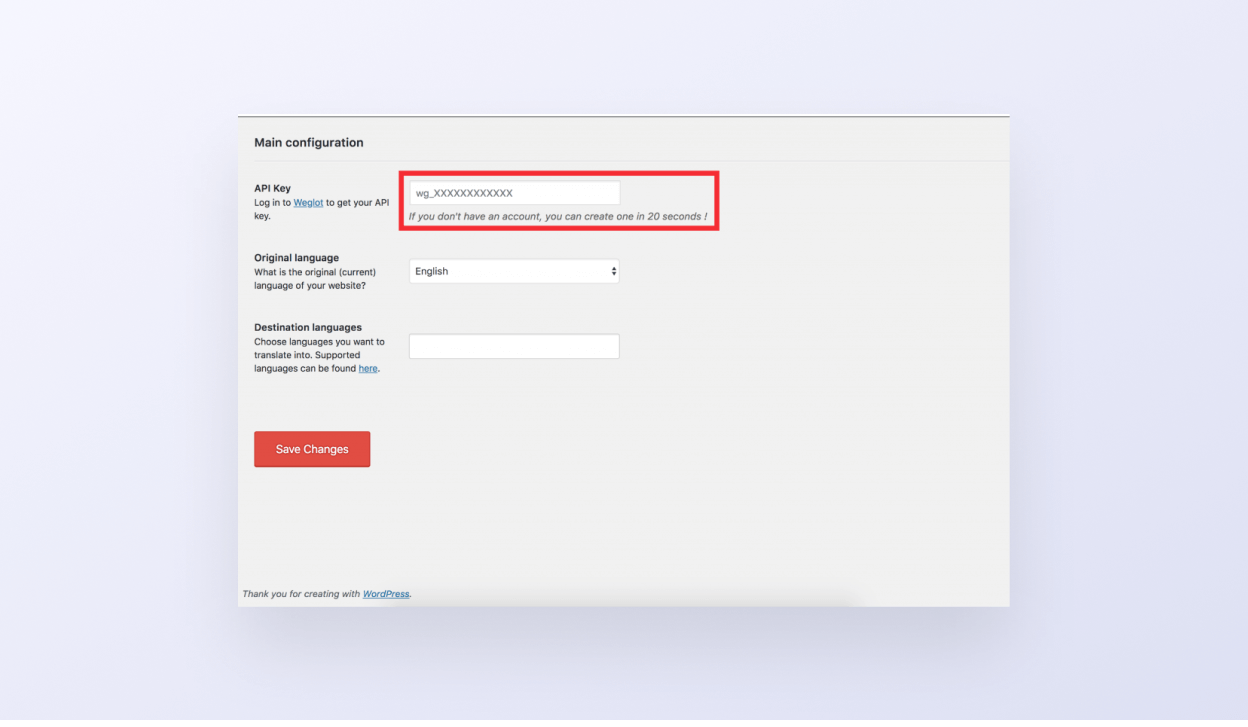
Within your Weglot tab on your WordPress dashboard you can now choose which languages you want to translate your site into.

To do this, enter the unique API key—available on your Weglot dashboard (you’ll need to create an account to get access to this).

How to Enter your Weglot API Key

Then select the original language of your site and enter the new languages you want to translate your site into. Click ‘Save Changes’.

Step 3

And, that’s it. Your multilingual site is now live! A language switcher button will now appear on your site so your site visitors can select their preferred language (or make sure ‘auto-switch’ is clicked on in your Weglot project settings to automatically redirect site visitors by browser language).

Ready to try Weglot? Check out their FREE 10-day trial with access to all the features of a paid plan!

Visit Weglot Now

How to Translate your WordPress Website in 5 Minutes with the Weglot Plugin appeared first on WP101.com


from WordPress Tutorials by WP101 https://ift.tt/2XyhiI6
Https://mwktutor.com/

Friday, 21 December 2018

The All-New WordPress 101 for WordPress 5.0 is Here!

WordPress 101 Updated for Gutenberg and WordPress 5.0

Are you ready to learn how to use the new Block Editor in WordPress 5.0 to build your own personal blog, business site, or online store? Our highly-popular WordPress 101 course is all-new, completely rewritten from the ground up and expanded to 34 videos. See what’s new!

We couldn’t be more excited to announce the release of our brand-new, completely rewritten WordPress 101 course for beginners. Earlier this year, we celebrated our 10th anniversary. Since 2008, we’ve updated and re-recorded the WordPress 101 videos a whopping 25 times. But this release was different.

As you know, WordPress 5.0 was released on December 6th. And it brought some big changes to the editor… actually, a complete overhaul of the editing experience we’ve all come to know and love. The new Block Editor, code-named “Gutenberg,” introduces a whole new way to create media-rich pages and posts that simply wasn’t possible in WordPress before, without turning to third-party add-ons.


The current editor got us through the last 14 years. We want Gutenberg to get us through the next 14.” — Matt Mullenweg, Creator of WordPress


In much the same way, our original WordPress 101 course served us all well for the past ten years; nearly three million people just like you have watched our WordPress video tutorials over the years! But we felt it was time to re-think our entire course.

So, we ditched the scripts we’ve relied on and updated for the past decade, and started from scratch. A new WordPress editing experience requires a new approach to onboarding new WordPress users.


A new WordPress editing experience requires a new approach to onboarding new WordPress users. Check out the all-new WordPress 101 video tutorial series by @WP101!
Click To Tweet


So, what’s new in WordPress 101?

In short… everything. We’ve broken the course into sections, centered around the activities a new WordPress user will want to learn first: Getting Started > Creating Content > Customizing Your Site > Exploring Blocks > Managing Your Site

The new course has been expanded to 34 video lessons, each one weighing in at no more than 5 minutes.

Plus, the first 7 videos are now completely FREE, so anyone can get a proper introduction to WordPress 5.0.

View the WordPress 101 Course Outline

Ready to check out the all-new WordPress 101?

We think you’re going to love creating content with the all-new WordPress Block Editor, but it definitely comes with a learning curve.

Whether you’re building a personal blog, a business site for your company, or even an online store, this course will teach you all the fundamentals of how to use WordPress to build your own website — in less than two hours.

By the end of this course, you’ll know how to create and manage your own WordPress website. You’ll learn how to use the all-new Block Editor in WordPress to create media-rich custom layouts. And you’ll be comfortable adding images, and using the Customizer to personalize the design of your site.

But best of all… you don’t have to learn in a vacuum. Every day, our WordPress educators answer WordPress questions from our members in our help forum. So when you need help, just reach out and we’ll do our best to get you back on your way.

Ready to get started? Check out the all-new WordPress 101 course outline, then watch the first seven videos for FREE. See you in the course!

WordPress 101 Course Page

The All-New WordPress 101 for WordPress 5.0 is Here! appeared first on WP101.com


from WordPress Tutorials by WP101 http://bit.ly/2Lt34C2
Https://mwktutor.com/

Thursday, 6 December 2018

Ready or not, WordPress 5.0 is here! Here’s what you need to know.

WordPress 5.0 Announcement Featured Image

WordPress 5.0 was just released, and it’s arguably one of the most significant releases we’ve seen in more than ten years. Here’s what you need to know…

WordPress 5.0 was just released, and it brings some big changes to the editor. The new Block Editor is code-named, “Gutenberg,” and it’s a project that actually started a couple of years ago with the goal of creating a completely new editing experience that makes it easy for anyone to create rich post layouts.


The current editor got us through the last 14 years. We want Gutenberg to get us through the next 14.” — Matt Mullenweg, Creator of WordPress


The new block-based editor is the first step toward a completely new WordPress experience across your entire site. And it will enable you to create custom page and post layouts that simply weren’t possible before… unless you’re an expert at writing code. We think you’re going to love creating content with the all-new Block Editor, but it definitely comes with a learning curve.

Here’s a sneak peek at Gutenberg and the new WordPress 101 course.

This video is from our brand-new WordPress 101 series, which we’ve been diligently working on since WordPress 5.0 hit the Release Candidate phase just 13 days ago. It provides a quick look at the all-new Block Editor.

Take Gutenberg for a test drive before you upgrade!

You can try out the all-new Block Editor for yourself without risking your own site or content. This live demo site allows you to experiment with all the blocks that are included in WordPress 5.0 and get a taste of the new editing experience before you decide to upgrade your own site.

Try the Gutenberg Demo

Should I upgrade now, or wait?

Normally, managed WordPress hosting companies automatically update their customers’ websites to the latest version as soon as it’s available. But WordPress 5.0 is no ordinary release. The new block editor is a significant departure from the editing experience millions of site owners have come to know and love.

And there simply has not been enough time given to third-party theme and plugin creators to ensure that their products are 100% compatible with the new version of WordPress. For this reason, nearly every managed WordPress hosting company has announced that they will wait until January to upgrade their customers’ WordPress sites.

We think that’s smart. Unless you have a compelling reason to upgrade today, we recommend that you hold off for now. Wait until the first ‘bug fix’ release is out before upgrading to WordPress 5.0.

What if I don’t want the new Gutenberg Editor?

No problem! If you prefer the current editor in WordPress, you can install the Classic Editor plugin, which will hide all traces of Gutenberg and its new block editor, including the Dashboard widget that invites users to try it.

You can install the Classic Editor plugin today, and still upgrade to WordPress 5.0 without worrying about breaking your site. In fact, it will be indistinguishable from 4.9.8 when you’re creating and editing content — but you’ll still get the other improvements and fixes that are in version 5.0. The Classic Editor even allows you to switch between Classic and Gutenberg on a per-user or per-post level.

Best of all, the Classic Editor plugin will be supported until 2022, so you’ll have plenty of time to try Gutenberg later.

Download the Classic Editor Plugin

When will the WordPress 101 videos be updated?

As we’ve done with every release for the past 10 years, we began the process of updating and re-cording the entire WordPress 101 video series as soon as the new version reached the ‘Release Candidate 1’ phase… just 13 days ago.

Sadly, this particular release cycle has been fraught with controversy, bugs, and significant changes to the UI as late as Beta 5. Despite widespread requests for a January release, WordPress 5.0 was released today. That’s just 13 days since we were given the first Release Candidate, including the weekend. That’s just not enough time for us to update our entire video series, plus create 4-6 brand new videos to cover the all-new features of the Gutenberg Block Editor in 5.0.

Thirteen days is simply not enough time to prepare for such an important release.

WP101 Recording Booth

The ’cave’ where Shawn’s been holed up, re-recording new WordPress 101 videos.

So, today is the first time in ten years the WordPress 101 videos will not be updated on the same day as the official release. We know you rely on our training videos for the best WordPress learning experience possible. So, we’re working diligently to get our videos to you as quickly as possible. We even canceled our trip to Nashville for WordCamp US this weekend—despite being sponsors of that event—so we can work on the new videos.

We hope to have the entire WordPress 101 video series updated by the end of next week. Thank you for your patience as we endeavor to make the most of this timeline. We know you’re going to love the all-new WordPress 101 videos!

Can’t wait? Check out our new, ‘Introduction to Gutenberg’ course today!

We partnered with Joe Casabona, who also created our WooCommerce Quick Start course, to make his 17-part video course on Gutenberg available to our members! We think you’re going to love creating content with the all-new Gutenberg Editor, but it definitely comes with a learning curve. That’s why we’re making this course available now!

View Gutenberg Course Details

What do you think about the all-new Gutenberg block editor in #WordPress 5.0? This video course by @jcasabona and @WP101 will help you prepare for #Gutenberg: https://ift.tt/2E54DV8
Click To Tweet


It’s your turn! What do you think of Gutenberg and WordPress 5.0?

We’re curious. What do you think of the all-new block editor? Will you upgrade today, or install the Classic Editor plugin? Tell us in the comments below!

Ready or not, WordPress 5.0 is here! Here’s what you need to know. appeared first on WP101.com


from WordPress Tutorials by WP101 https://ift.tt/2QFNWX3
Https://mwktutor.com/

Thursday, 8 November 2018

New Course: An Introduction to Gutenberg

Have you heard about Gutenberg, the all-new content editor coming soon to WordPress? It’ll completely transform the way you create content in WordPress. Don’t get caught by surprise! This 17-part video course by Joe Casabona will introduce you to the all-new Gutenberg Editor in WordPress and show you how to use all of its exciting new features.


Gutenberg Editor IconGutenberg will transform the WordPress editor into a powerful tool that will enable you to create rich content with more control over layouts. Gutenberg introduces the concept of ‘content blocks,’ and it's sure to have a massive and long-lasting impact on how you create content in WordPress.

“Gutenberg” is the codename for the project that started a couple of years ago to create a completely new editor experience for WordPress. The goal is to create a new editing experience that makes it easy for anyone to create rich post layouts.

Gutenberg will be the new editor as of WordPress 5.0, and it will revolutionize how you create content with WordPress. You’ll be able to build rich layouts, right within the content editor.


The current editor got us through the last 14 years. We want Gutenberg to get us through the next 14.” — Matt Mullenweg, Creator of WordPress


When you dive into it, you’ll quickly find that Gutenberg enables you to create content like you’ve never been able to before. It’s without a doubt the most significant enhancement to WordPress in years. Out of the box, Gutenberg includes over a dozen “blocks,” or modules that you can drag and drop into your posts and pages to create just about any type of layout you can imagine.

Blocks enable you to build beautiful layouts and more engaging content. Insert, rearrange, and style multimedia blocks without touching code. Just add a block and focus on your content.

Test-Drive Gutenberg Blocks for Yourself

Want to try Gutenberg before you install it on your site?

Gutenberg Demo

“Will you update the WordPress 101 course to cover Gutenberg?”

Yes! In fact, we’ve already begun the process of updating the scripts for our entire WordPress 101 course to cover the new Gutenberg editor in our next version of the WordPress 101 videos.

We’ve been carefully monitoring Gutenberg since it was first announced, and we anticipate recording 4-6 new videos to cover the new Gutenberg editing experience in WordPress 5.0.

Of course, we’ll also update and continue to maintain the current videos that cover the “Classic Editor” as well, since many site owners will not enable Gutenberg on their sites immediately. In fact, if you prefer the current editor in WordPress, you can install the Classic Editor plugin, which will hide all traces of Gutenberg and its new block editor, including the Dashboard widget that invites users to try it:

Download the Classic Editor Plugin

Our commitment has always been to fully cover the ‘out-of-the-box’ WordPress experience, and we look forward to helping WordPress users of all levels get up to speed as quickly as possible with Gutenberg.

“When will your updated videos for Gutenberg be released?”

We’ve already begun updating scripts, but we cannot begin recording the new videos until WordPress 5.0 is stable.

WordPress 5.0 is currently slated for release on November 19th. Over the past ten years, we’ve updated our WordPress 101 videos with every major release of WordPress—a whopping 23 times, to date! But, for the first time in our history, we may not be able to update our videos until after WordPress 5.0 is released.

Why the delay?

This particular release cycle has been fraught with controversy, bugs, and significant changes to the UI as late as Beta 3, which was released earlier this week. We normally begin re-recording our videos as soon as the first Release Candidate is available. But the schedule for this particular release cycle calls for just one Release Candidate, followed by the final release just seven days later. Normally, we have at least 14 days between RC1 and the final release, and we normally see at least two Release Candidates, sometimes more, if needed.

Further, the new default theme, Twenty Nineteen, has only just been granted a “feature freeze,” which means the development team can now turn their attention to fixing bugs. The theme is not yet finished, and we cannot re-record our videos until the theme is complete.

There’s been a great deal of discussion in the WordPress community about postponing the release date, allowing more time to ensure WordPress 5.0 is truly ready for release. But as of today, it’s simply not ready. And we’re unable to begin production on our new videos until the theme is complete and this release is more stable.

We know you rely on our training videos to provide the best WordPress learning experience possible. So, we’d rather wait an extra week or two to ensure that our videos are accurate, and of the quality that you’ve come to expect from WP101.

Meanwhile, our ‘Introduction to Gutenberg’ course will get you up to speed!

We’ve partnered with Joe Casabona, who also created our WooCommerce Quick Start course, to make this 17-part video course on Gutenberg available to our members! In less than 90 minutes, you’ll learn all this and more:

  • What is Gutenberg?
  • How is it Different from the Current Editor?
  • How to use Key Blocks
  • The Classic Editor Plugin
  • Building a Site with Guetnberg
  • Plus much more!

Who is this course for?

This course is for all WordPress users. Gutenberg will be released within the next couple of weeks, so it's important you understand what it is and how it works. In short, if you use WordPress to create or edit content for your website, you'll want to know what’s coming and how it will affect you. This course is especially important for:

  • Content creators who want a more powerful native content editor without the need for a plugin. The new WordPress Editor is introducing the concept of blocks, giving us more modular content layouts. If you create content, this course will show you how get the most out of this new experience.
  • Freelancers and agencies who need to know how Gutenberg works for their clients. This course will give you everything you need to effectively prepare your clients for the upcoming change to WordPress, including UI walk-throughs and test plans for upgrading.
  • WordPress educators who train users on how to use the Dashboard. If you’re tasked with teaching folks how to use WordPress, this course can be your first foray into creating your own lesson plans and material for your students, employees, and customers.

Ready to get started with Gutenberg?

We think you’re going to love creating content with the all-new Gutenberg Editor, but it definitely comes with a learning curve. That’s why we’re making this course available now!

View Gutenberg Course Details

New Course: An Introduction to Gutenberg appeared first on WP101.com


from WordPress Tutorials by WP101 https://ift.tt/2DuPbCo
Https://mwktutor.com/