Friday, 23 May 2025

How to Get a Virtual WhatsApp Number for Your Business

Are you considering using a virtual number for your WhatsApp Business account? While it might seem like a good option, I’ve seen countless businesses face serious problems trying this approach.

I’m talking about business numbers getting blocked, or WhatsApp straight-up refusing to accept the virtual number. So, what’s going on? And what’s the solution?

In this guide, I’ll share everything you need to know about getting a WhatsApp number for your business, including why virtual numbers might not be your best option and which alternatives will serve you better in the long run.

How to Get a Virtual WhatsApp Number for Your Business

Getting a Virtual WhatsApp Number for Your Business

So you’re thinking about using a virtual phone number for your business’s WhatsApp account? It may sound like a smart way to connect with your customers, but there’s a catch.

Let’s start with the positive. 

A virtual phone number isn’t directly linked to a physical phone line or a specific device. Instead, most virtual phone numbers are linked to an online account with a virtual phone service provider. You just log in to manage everything. 

That said, a virtual phone number gives you the freedom to answer WhatsApp messages and calls from pretty much anywhere, across all sorts of devices.

Virtual numbers are also perfect if you don’t have a physical office in the customer’s area or even a physical office at all. You can buy virtual numbers with local area codes and make your business look super professional to people in different states, or even across multiple countries.

Plus, a virtual WhatsApp number keeps your personal number completely private. It’s like having a separate work line without needing a whole new phone or SIM card.

Sounds awesome so far, doesn’t it? But don’t rush out to buy a virtual phone number just yet because there are actually some pretty big drawbacks.

Why You SHOULDN’T Get a Virtual WhatsApp Number

Heads up: WhatsApp generally doesn’t like you to use virtual numbers for business accounts.
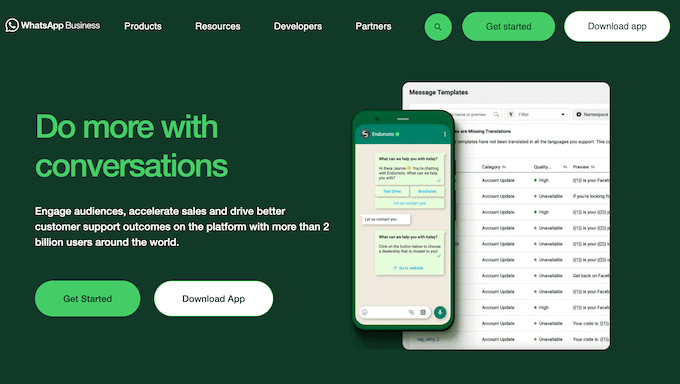
The WhatsApp Business website

The WhatsApp terms and conditions clearly state that you must provide accurate, current, and complete information, including a valid legal business phone number.

A legal business phone number is typically a number registered to your business, either a landline, mobile number on a business plan, or a number provided by a reputable VoIP service provider specifically for business use.

The main reason is all about keeping the platform safe and trustworthy for everyone. WhatsApp needs to be absolutely sure that a business account is tied to a real, legitimate business entity.

Virtual numbers, while convenient are often easy to get, can be temporary, and don’t have that strong link back to an established business identity. This makes it much harder for WhatsApp to properly verify who you are, which is a key step in fighting spam and preventing fraud.

I’ve also heard from legitimate online businesses that tried to set up a virtual WhatsApp number without realizing it was a problem. Some couldn’t even sign up for WhatsApp, and others had their accounts shut down without any warning.

Suddenly changing your business number can really make your business seem unprofessional and make people question your trustworthiness.

All that said, I don’t recommend using a virtual WhatsApp number for your business.

However, at WPBeginner, we want to help you decide what’s best.

If you want to use a virtual number with WhatsApp (and you’re aware of the risks), then we’ve collected a list of the best virtual phone number apps you can use. Just be aware there’s no guarantee that the virtual number will work with WhatsApp. 

Getting a WhatsApp Number for Your Business (A Better Alternative)

Instead of taking a gamble on a virtual number, I recommend setting up a real business phone number instead. This gives you a reliable, professional foundation for all your WhatsApp communications.
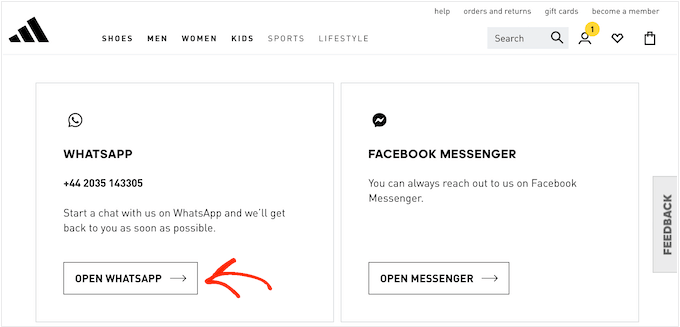
An example of an online business that uses WhatsApp chat

It will also keep your personal and work life separate, and make your business look trustworthy while following WhatsApp’s rules.

Setting up a dedicated business phone number now also unlocks possibilities like SMS marketing and integrating with other business tools further down the line. 

And the best part? When it comes to setting up a business number, you have lots of options. 

To start, we’ve put together a list of the best phone services for small businesses so you can find a plan that works for your budget. 

Do you want a toll-free number instead? Then, I recommend our dedicated guide on how to get an 800 toll-free number for your business. 

Want to cut to the chase? Nextiva is my top pick, especially for startups and smaller businesses.

The Nextiva business phone provider

Nextiva is a popular VoIP and virtual business phone service that offers a ton of features such as call routing, voicemail to text, caller ID, call forwarding, and custom greetings.

Even better, many of their plans include business phone numbers, so you can get started with WhatsApp straight away. But this isn’t just a generic recommendation—we actually use Nextiva at WPBeginner and have always been happy with it.

You can read more about our firsthand experiences in our detailed Nextiva review. 

How to Add a WhatsApp Chatbox to WordPress

Now you have a dedicated number (again, I strongly advise using a real business number rather than a virtual one), you need to make sure people can contact you. 

Simply listing the number on your About Us or Contact Us page isn’t ideal because it forces users to manually type it into their devices or WhatsApp. Plus, many people prefer the convenience of live messaging over traditional phone calls.

That’s why I highly recommend adding a WhatsApp chat button to your WordPress website. This lets users message your WhatsApp number with just a few clicks. You can then conveniently respond via the WhatsApp mobile app, web interface, or desktop software.

The best way to add WhatsApp to your WordPress blog or website is by using Click to Chat. This free plugin lets you create an automated greeting and then control exactly where the WhatsApp button appears on your site.

Step 1: Configuring Click to Chat

To get started, you’ll need to install and activate the free Click to Chat plugin.

How to add WhatsApp live chat to your WordPress blog or website

For more instructions, see our step-by-step guide on how to install a WordPress plugin.

With that done, head over to Click to Chat » Click to Chat.
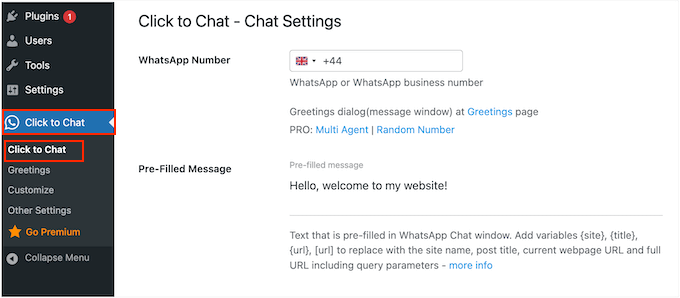
Configuring the WhatsApp live chat on your WordPress website or blog

In the ‘WhatsApp Number field,’ you need to type in your business phone number.

This is the number where you’ll receive messages from visitors, users, or potential leads. 
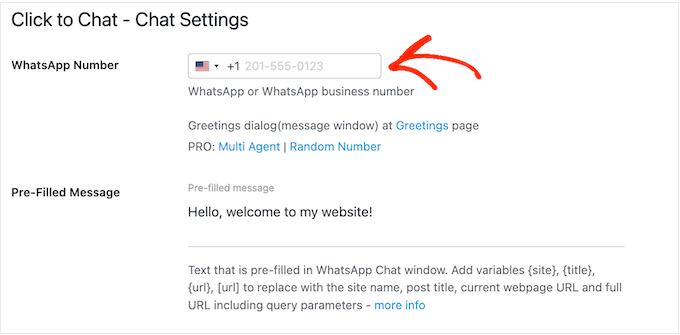
Adding your phone number to a WhatsApp Business account

Next, you can enter a default message in the ‘Pre-Filled Message’ field. 

This message will automatically appear in the user’s WhatsApp chat window when they click the button, as you can see in the following image.

An example of a WhatsApp chat box, created using a WordPress plugin

This is your chance to request important details from visitors or guide them on what to do next.

You can also use it to set expectations around things like response times. 
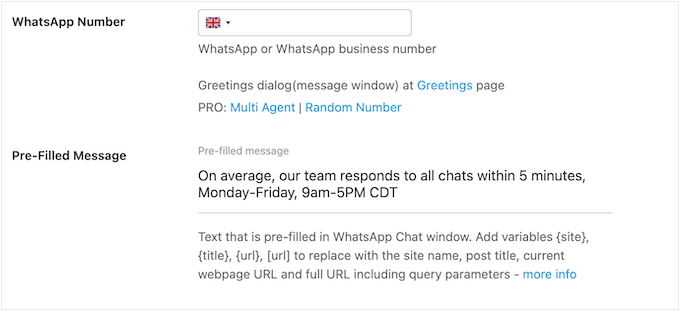
Setting up an automated message for your live chat box

Next, scroll to the ‘Style, Position’ section.

Here, you need to open the dropdown menu and select a style for your WhatsApp chatbox. Click to Chat offers a few different styles, so just choose the one that fits your WordPress website the best.
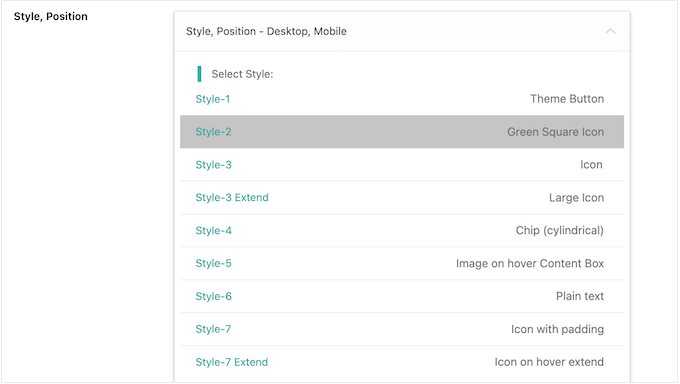
Styling the chat box for your website, blog, or online store

After that, scroll down to the ‘Position to Place’ section.

Here, you can choose where your chatbox appears onscreen, such as Top or Bottom. You can also change the size of your chatbox.
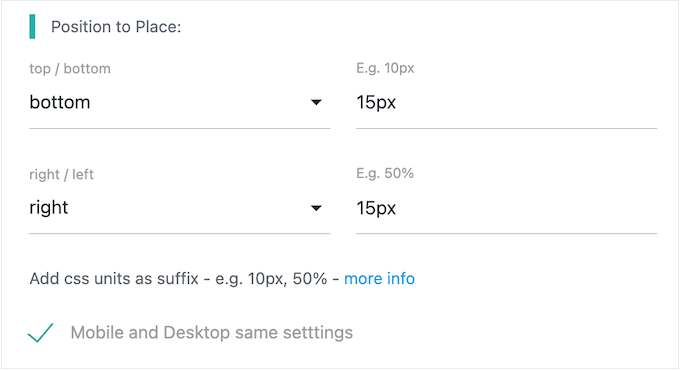
How to place the real-time chat-box on your website, blog, or online marketplace

Next, scroll to the ‘Display Settings’ section and choose where to display your WhatsApp chatbox. You can either show the chatbox across your entire WordPress website or limit it to specific pages only.

For example, if you’re using WhatsApp for customer support, then you might only show it on your knowledge base pages.

To start, set the plugin’s default behavior by selecting either ‘Show on all pages’ or ‘Hide on all pages.’ 
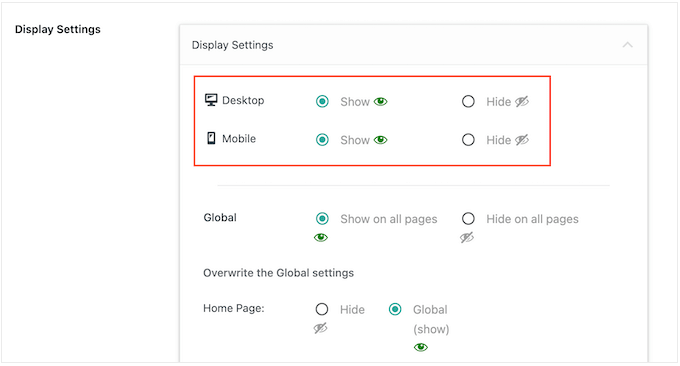
How to add a live chat to your website, blog, or WooCommerce store

You can override this default behavior for specific pages, posts, and other content types by scrolling to ‘Overwrite the Global settings.’ 

Here, you can tweak the settings for your home page, posts, pages, archive pages, categories, or your site’s 404 page. 
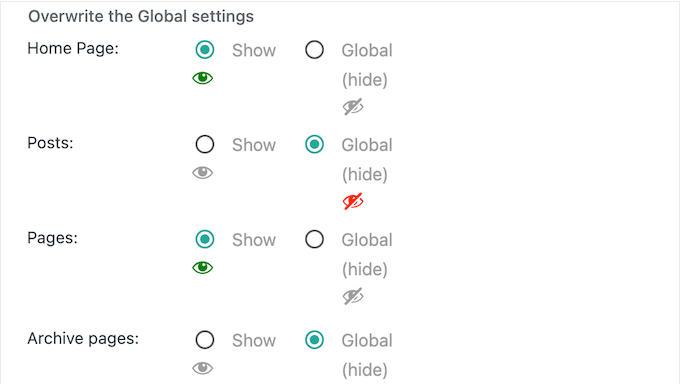
Overwriting global live chat settings

Alternatively, you can enter the specific category names or post IDs where you want to hide the WhatsApp chatbox. There are no fixed rules here, so I recommend playing around with different settings until you find something that works for your website, blog, or online store.

There are more settings to explore, but that’s all you need to configure a basic chatbox. When you’re happy with how everything is set up, scroll to the bottom of the screen and click ‘Save Changes.’

Step 2: Add a Custom Greeting

Next, you’ll want to add a custom greeting. This is the message that Click to Chat will show when someone opens the chat window.

An example of a WhatsApp chat window on a WooCommerce store

I recommend using this space to welcome the visitor or maybe ask whether they have any questions.

To do this, head over to Click to Chat » Greetings.
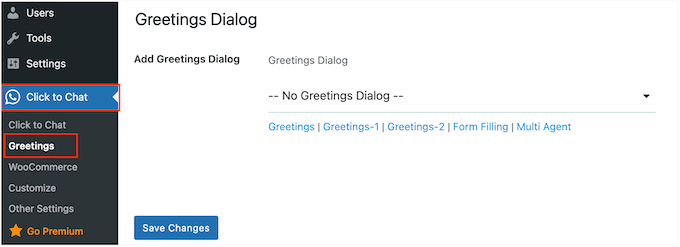
How to change the settings for your WhatsApp chat

In the ‘Add Greetings Dialog’ area, you have to open the dropdown menu and select ‘Greeting 1 – Customizable Design.’

Now, click to expand the ‘Content: Header, Main, Bottom, Call to Action’ section if it isn’t already open. 
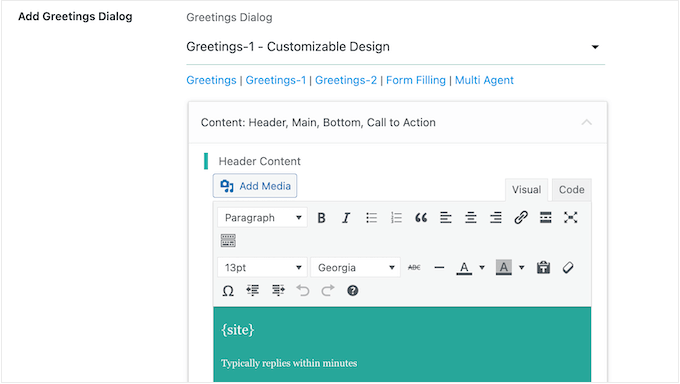
Customizing how your WhatsApp chat window looks

In this section, you can add all the content you want to include and change the styling, such as adding bold or underlined effects.

You can also add a call to action, which is the text that appears on the WhatsApp button. Visitors will click this button to open the full chat dialog, so I recommend using something descriptive like ‘Chat Now.’ 
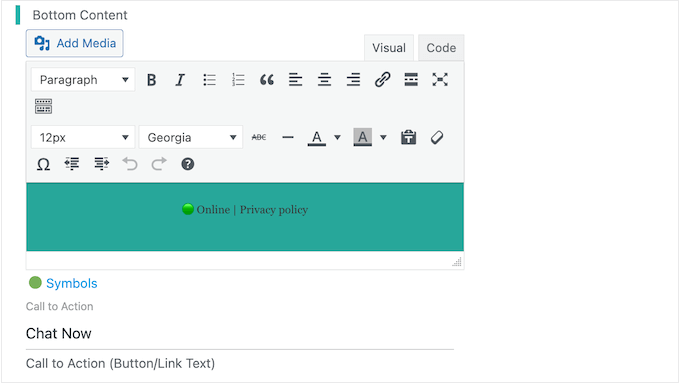
Customizing your live chat call to action button

After that, scroll to the ‘Customizable Design’ section. Once again, you’ll need to click to expand this section if it isn’t already open.

Here, you can change the color scheme of your main content, header, and message box.
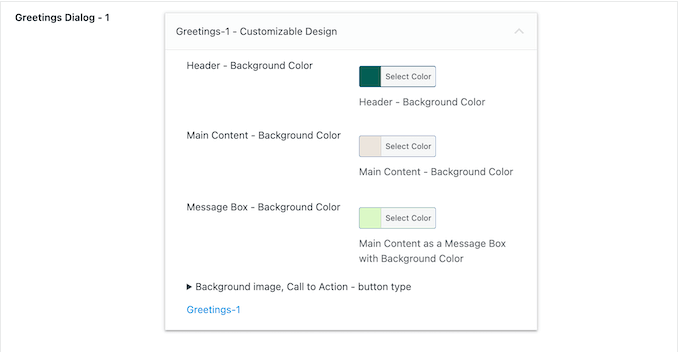
Adding your own color scheme to WhatsApp

You may want to look through the other settings, but this covers all the essentials.

When you’re happy with how the box is set up, click on the ‘Save Changes’ button. Then, head over to your website to see the WhatsApp chatbox in action.

How to add a WhatsApp business chat to your WordPress website

Frequently Asked Questions About Business Numbers

I’ve heard from countless WPBeginner readers who dream of launching their own online businesses. These people almost always have questions about setting up a professional-looking business number.

To help you out, I’ve answered some of those frequently asked questions below. 

Can I use a virtual number for WhatsApp Business?

WhatsApp’s terms and conditions don’t explicitly mention virtual phone numbers. However, it’s strongly implied that you shouldn’t use virtual numbers with WhatsApp. 

WhatsApp clearly states that you need to give them accurate, up-to-date information, including a legitimate, legal business phone number. Since virtual numbers are so easy to create and discard, they don’t meet these criteria.

While you might be able to use a virtual number for a little while, I’ve heard from people who haven’t been able to even register their virtual number with WhatsApp. Even worse, some businesses claim their virtual number suddenly stopped working, possibly due to WhatsApp blocking it. 

The bottom line? Even if you can get away with it, I strongly advise against it. It’s just not worth the risk.

Can I create a WhatsApp number for my business?

Don’t want to use your personal number for your business WhatsApp? I get it. 

That’s why I recommend setting up a separate business number using one of the many affordable, professional phone service providers such as Nextiva or RingCentral.

Our guide to the best business phone services has all the information you need. 

What is a VoIP? 

VoIP (voice over Internet protocol) is a technology that lets you make and receive phone calls using the Internet instead of traditional phone lines.

Unlike landline phone systems, which are limited to a single desk phone, VoIP lets you make and receive business phone calls from your laptop, tablet, regular smartphone (using an app), and even VoIP-compatible office phone sets.

Since all calls are made over the internet, it’s extremely cost-efficient for both domestic and international calls. Even better, most business VoIP providers offer unlimited minutes without extra costs. 

What’s the difference between virtual phone numbers and VOIP?

Some of our readers are a bit unsure about the differences between virtual phone numbers and VoIP. I get it, since they’re often mentioned in similar tutorials – plus, you can technically use both at the same time, so things can get a bit confusing. 

While often related, VoIP and virtual numbers serve distinct purposes. VoIP is the underlying technology that enables voice communication over the Internet. It’s the system that converts audio into digital data and transmits it online.

Meanwhile, a virtual phone number isn’t tied to a physical phone line. Basically, a virtual phone number can use VoIP technology, but virtual numbers can also use other methods like traditional call forwarding.

At the same time, VoIP can use a virtual phone number, but they may also use other things like vanity numbers, local numbers, and toll-free numbers. 

I hope this tutorial helped you learn how to get a WhatsApp phone number for your business. You may also want to see our list of the best WordPress chat plugins or our guide on how to add a free live chat in WordPress.

If you liked this article, then please subscribe to our YouTube Channel for WordPress video tutorials. You can also find us on Twitter and Facebook.

The post How to Get a Virtual WhatsApp Number for Your Business first appeared on WPBeginner.


from WPBeginner https://ift.tt/BVbJMQF
More links is https://mwktutor.com

Wednesday, 21 May 2025

Shared Hosting vs. Cloud Hosting vs. Managed WordPress – What’s the Difference?

I started my first blog with a shared hosting plan because I just needed the cheapest way to get my content online.

But as my blog grew and traffic picked up, I noticed things getting slower. Sometimes, my site would take forever to load, and I knew I had to make a change.

That’s when I found myself lost in comparison articles, trying to figure out the difference between upgrading shared hosting, moving to VPS or cloud hosting, or switching to managed WordPress hosting.

It all felt complicated. I didn’t have a big budget, and every option had its own set of pros, cons, and confusing jargon. I just wanted someone to explain it in plain English and tell me which one actually made sense for my situation.

If you’re in the same boat, this guide is for you. I’ll break down the differences, share what worked for me, and help you figure out which hosting option fits your needs, without all the guesswork.

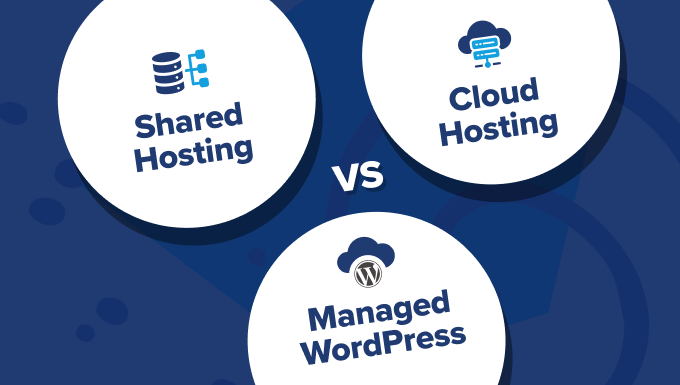
Comparing shared, cloud, and managed WordPress hosting options

What Is Web Hosting?

Web hosting is like renting space for your website on the Internet. When someone visits your site, they’re actually connecting to a special computer called a server that stores and delivers your website files.

That server keeps your site online, loads your pages, and handles all the behind-the-scenes work. Without hosting, your website simply can’t exist on the web.

Related 🔗: What’s the Difference Between Domain Name and Web Hosting (Explained)

There are different types of hosting, and each one offers a different balance of price, performance, support, and ease of use. Some plans are cheap and simple to get started with. Others give you more speed and flexibility, but can cost more.

Here’s a quick look at how shared hosting, cloud hosting, and managed WordPress hosting compare in terms of cost and beginner-friendliness:

Hosting Type Best For Key Benefit Typical Cost
Shared Hosting Beginners & personal blogs Affordable and easy to start $2.75–$10/month
Managed WordPress Hosting Non-tech users & busy site owners Hands-off speed and security $5–$30/month
Cloud Hosting Growing sites & resource-heavy projects Scalable and high-performance $10–$100+/month

As you can see, shared hosting is easy to get started, and managed WordPress hosting is good for non-tech and busy site owners. Cloud hosting becomes a strong contender once your site grows or you need more control.

Now, let’s look at each of these hosting options in detail and see how they stack up against each other.

How I Compared Shared Hosting, Cloud Hosting, and Managed WordPress

To help you choose the right hosting type for your WordPress site, I followed a hands-on, experience-driven approach backed by careful research:

  • Real-World Experience: At WPBeginner, we have been helping users with WordPress hosting decisions since 2009. We’ve personally used shared, managed, and cloud hosting across different projects and client websites.
  • Hands-On Testing: I’ve set up WordPress sites on all three hosting types to observe how they perform, how easy they are to manage, and what challenges beginners might face.
  • Feature Comparison: I compared critical differences in setup, support, scalability, speed, and pricing to help beginners understand what really matters.
  • Use Case Insights: I included real-world examples based on where each hosting type fits best, whether you’re launching a small blog, running a business site, or growing an online store.
  • Pricing Research: I verified current pricing trends and listed realistic starting costs for each hosting type to make comparisons easier for budget-conscious users.

Our goal is to make hosting choices feel less intimidating and help you start your WordPress journey with clarity and confidence.

📣 Why Trust WPBeginner?

WPBeginner has been the go-to resource for WordPress beginners since 2009. We’re trusted by millions of users worldwide and are known for making complex topics simple and easy to understand.

Our team has decades of combined experience working with WordPress hosting, from building personal blogs to running high-traffic sites across different hosting platforms.

We test what we write about. Each of our hosting recommendations is based on thorough testing done using industry-standard benchmarking tools.

Everything we recommend is based on what works in the real world, not just what sounds good on paper. We always put beginners first—because that’s who we’re here to help.

Want to learn more about how we create and fact-check our content? See our editorial process.

What Is Shared Hosting?

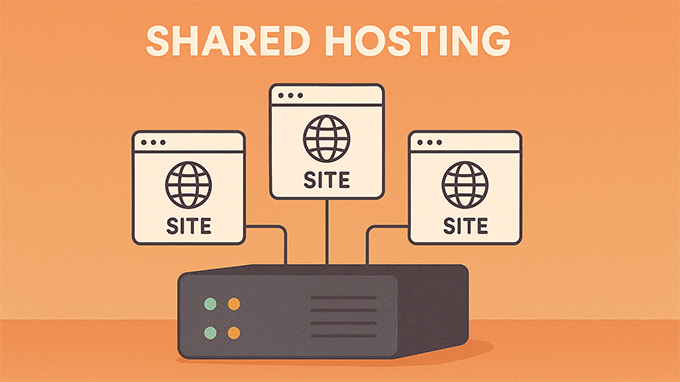
Shared hosting illustration

Most people, including me, start with shared hosting. It’s the most affordable option, which makes it perfect for getting your site off the ground.

With shared hosting, your website lives on the same server as many other sites. Think of it like renting a room in a big apartment building. You get your own space but share the same walls, electricity, and plumbing.

This setup works fine for starting a blog, personal websites, or anyone with light traffic. But things can slow down as more people visit your site, or your neighbors get noisy (meaning high traffic on other sites).

That’s exactly what happened to me. My blog was growing, but the site started lagging. I needed something faster—but at the time, I wasn’t ready to spend too much or manage anything complex.

Here’s a closer look at what you can expect with shared hosting.

Pros of Shared Hosting:

  • Affordable: Shared hosting plans often start under $5/month, making them perfect for beginners on a tight budget.
  • Beginner-Friendly: Most providers offer one-click WordPress installs, easy dashboards, and simple tools that don’t require technical knowledge.
  • Freebies Included: Many plans include a free domain name, email accounts, SSL certificate, and backups to help you get started.
  • Low Maintenance: Everything is managed for you, so you don’t have to worry about maintaining the server.
  • Large Support Communities: Since shared hosting is so common, there is a lot of help available, from tutorials to forums and live chat support.

Cons of Shared Hosting:

  • Slower Performance: Since resources are shared, your site may slow down if other websites on the server get busy.
  • Limited Resources: You usually get limited CPU, memory, and bandwidth, which can become a problem if your traffic spikes.
  • Less Control: You won’t be able to change server settings or install custom software that requires advanced configurations.

Best for: Shared hosting is an excellent fit if you’re launching a smaller site and don’t expect a lot of traffic right away. Here are some examples:

  • New or Personal blogs: A place to share your thoughts, stories, or hobbies.
  • Online portfolios: Ideal for freelancers, writers, designers, and photographers showcasing their work.
  • Small business websites: Great for local shops, consultants, or restaurants sharing menus, contact info, and services.
  • Nonprofits and community groups: An easy way to build awareness and share updates.
  • Test projects: If you’re trying out an idea or learning WordPress, shared hosting gives you a low-risk place to start.

Once your site starts growing, you can always upgrade to something faster and more powerful, like cloud hosting or managed WordPress. See our article on explaining when you should change your WordPress web hosting.

Want to explore shared hosting providers? See my top picks for shared hosting.

What Is Cloud Hosting?

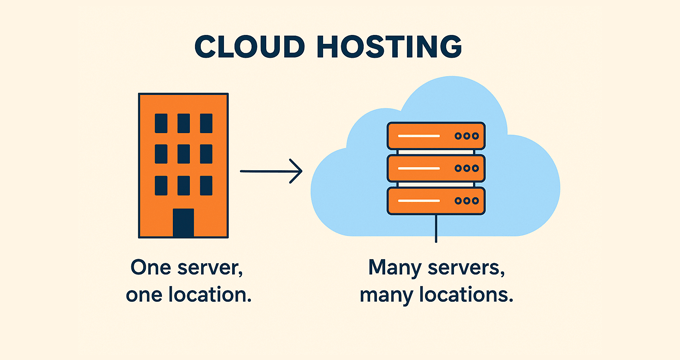
Cloud hosting explained

Cloud hosting is like renting several apartments across different buildings instead of just one room. If something goes wrong in one building, then your site keeps running because the others can pick up the slack.

Instead of relying on a single physical server, cloud hosting spreads your website across a network of connected servers. This setup helps balance traffic loads and improves uptime and performance, especially during traffic spikes.

You might also come across dedicated hosting while doing your research. With that setup, your site lives on a single physical server in one location, and you get all of its resources to yourself. It’s powerful, but not as flexible or beginner-friendly as cloud hosting, which spreads things across multiple servers and is easier to scale.

I’ve helped clients migrate to cloud-based setups when they needed better speed and reliability. Cloud-based hosting offers a solid middle ground—more power than shared hosting without the hassle of managing everything yourself.

Pros of Cloud Hosting:

  • Scalable: Cloud hosting grows with your traffic. It can handle sudden spikes without crashing your site.
  • Better Performance: You get more consistent speed and uptime because your site uses multiple servers behind the scenes.
  • Resource Flexibility: Many cloud plans allow you to customize CPU, RAM, and storage based on your needs.
  • Redundancy and Stability: If one server fails, another takes over, so your site stays online.
  • Mid-Range Options: Some hosts offer affordable cloud plans that aren’t too technical, so you can get started without managing the setup yourself.

Cons of Cloud Hosting:

  • More Expensive: Cloud hosting usually costs more than shared or basic managed WordPress plans, especially for higher-tier resources.
  • Can Be Complex: Some cloud platforms require technical knowledge to manage, unless your plan is fully managed by the host.
  • Pricing Can Fluctuate: Some cloud providers use usage-based billing, which makes monthly costs less predictable.
  • Not Always Beginner-Friendly: Unless you’re using a simplified cloud hosting plan (like HostGator Cloud or Bluehost Cloud), it may feel overwhelming to new users.

Best for: Cloud hosting is ideal when your site is growing fast or if you expect traffic spikes. It offers more power and flexibility than shared hosting. Use cases include:

  • Online stores: eCommerce sites that need consistent speed during busy sales periods.
  • Business websites: Sites with increasing traffic that require better performance and uptime.
  • Membership or course sites: Platforms where users log in and access content regularly.
  • Media-heavy blogs: Blogs with videos, podcasts, or large images where loading speed matters.
  • Projects that need room to grow: If you’re planning ahead for future growth, cloud hosting gives you breathing room.

Hosting providers like SiteGround and Bluehost Cloud offer managed cloud hosting solutions. These solutions are easier to use, as the host handles server management.

On the other hand, cloud platforms like AWS and Google Cloud require you to manage server resources yourself.

What Is Managed WordPress Hosting?

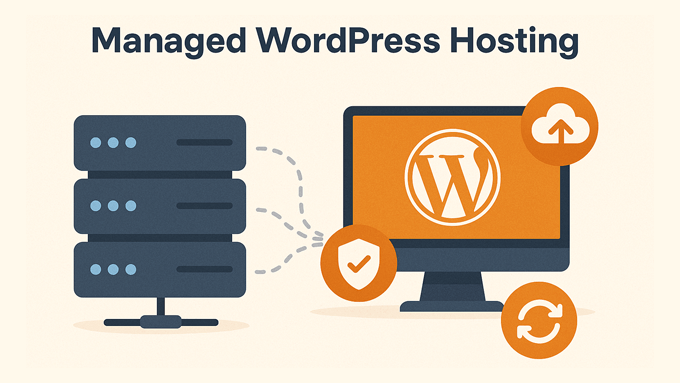
Managed WordPress hosting illustration

Managed WordPress hosting is like living in a fully serviced apartment where everything is taken care of for you. You don’t have to fix the plumbing, mow the lawn, or even take out the trash—the company handles all of it behind the scenes.

With this type of hosting, everything is optimized specifically for WordPress. You get faster load times, stronger security, automatic updates, backups, and expert support—all without lifting a finger.

When I finally switched to managed WordPress hosting, it felt like a breath of fresh air. I could focus on writing and growing my site instead of worrying about updates, security scans, or caching plugins. It wasn’t the cheapest option, but the time and stress it saved me were worth every penny.

Pros of Managed WordPress Hosting:

  • Speed and Performance: Everything is tuned for WordPress, so your site loads faster right out of the box.
  • Security Handled for You: Malware scanning, firewall protection, and login hardening are often built in.
  • Automatic Backups and Updates: No more worrying about updating plugins or losing your data.
  • Expert Support: The support team knows WordPress inside and out, so they can actually help with plugin or theme issues.
  • Time-Saving: Great for business owners or content creators who don’t want to manage the technical side of things.

Cons of Managed WordPress Hosting:

  • Higher Costs: Managed hosting typically starts around $15–$30/month and goes up from there.
  • WordPress-Only: You can’t host other types of websites or apps—it’s just for WordPress.
  • Some Plugin Restrictions: Certain hosts may block plugins that conflict with their built-in tools, like performance or backup plugins.
  • Less Control: Advanced users might miss having access to full server settings or configurations.

Best for: Managed WordPress hosting is perfect for people who want a faster, safer site without managing any of the technical stuff. It’s ideal for:

  • Busy bloggers: Focus on content while the host handles speed, backups, and security.
  • Small business owners: Run your website without hiring a developer or learning server management.
  • eCommerce stores: Faster checkout and reliable uptime help keep your customers happy.
  • Non-tech creators: If you just want your site to work and not worry about how it works, this is the way to go.
  • Agencies and freelancers: Reliable performance and support help streamline client work and reduce headaches.

To learn more, see our top picks for managed WordPress hosting with detailed reviews.

Shared vs Cloud vs Managed WordPress Hosting (Side-by-Side Table)

If you’re still unsure which hosting type is right for you, here’s a quick comparison to help you see the differences at a glance:

Feature Shared Hosting Cloud Hosting Managed WordPress
Ease of Use Very easy
Beginner-friendly
Moderate
Depends on host
Very easy
Everything is handled
Performance Basic
Can be slow during peak times
High
Good for growing traffic
High
Optimized for WordPress
Scalability Limited
Upgrade options exist
Excellent
Scales with demand
Good
Can handle moderate growth
Maintenance Low
Managed by host
Moderate to high
May need manual setup
None
The host handles everything
Security Basic
Shared risks
Better
Isolated resources
Excellent
Includes firewall, scans, and backups
Best For New bloggers
Personal sites
Business sites
Traffic spikes
Busy site owners
Non-tech users
Price Range $2.75–$10/mo $10–$100+/mo $5–$30+/mo

Each option has its place. It really comes down to how much traffic you expect, how comfortable you are with the technical stuff, and how much time you’re willing to spend managing your site.

How to Decide Which Hosting Is Right for You

Choosing a hosting plan doesn’t have to be stressful. The key is to think about where you are right now and where you want your site to go in the future.

Here are a few simple questions to help you narrow things down:

  • What’s your budget? Are you trying to start with the lowest possible cost, or do you have room to invest in convenience and performance?
  • How much traffic do you expect? Are you just starting out, or do you already have a regular audience that visits your site?
  • How tech-savvy are you? Do you feel comfortable managing settings and updates, or would you rather have someone else handle it?
  • How much time do you want to spend maintaining your site? Would you rather focus on your content and business, or do you enjoy digging into backend tools?

Still unsure? Let me walk you through a few common scenarios:

✅ You’re just getting started on a budget: Shared hosting is your best bet. It gives you everything you need to launch your site without spending much. You can always upgrade later.

🚀 Your business or blog is growing: Cloud hosting offers the speed and flexibility to handle more traffic without slowing down. It’s a good step up when your site needs more muscle.

🧘‍♂️ You want zero hassle and everything done for you: Managed WordPress hosting gives you peace of mind. You get great performance and expert support without dealing with updates or technical headaches.

The good news is that you can always start small and grow into what you need. Most hosting companies make it easy to upgrade your plan as your site evolves.

Our Personal Hosting Journey

I joined the WPBeginner team in 2012, and since then, I’ve worked with nearly every type of hosting while helping people launch and grow their WordPress websites.

In the early days, WPBeginner was hosted on HostGator, first on shared hosting, then on a custom cloud setup. It was affordable and flexible, which made it a good fit when we were focused on keeping costs low while handling decent traffic.

As the site grew, we moved to SiteGround, which is still our hosting provider today. We are on their Enterprise cloud infrastructure. But even their starter managed WordPress hosting plans are hosted on the Google Cloud, which is a massive upgrade from typical shared hosting platforms.

Our founder, Syed Balkhi, wrote a detailed case study explaining why we moved to SiteGround.

After testing SiteGround across multiple projects and seeing how well their platform handled real-world demands, I knew it was the right move for WPBeginner.

Syed Balkhi

Across our team and partner sites, we’ve used everything from shared hosting and managed WordPress plans to full cloud platforms. In most cases, I recommend starting simple, then upgrading only when you actually need more power or flexibility.

My Top Picks for Each Hosting Type

If you’re still unsure which hosting company to choose, here are my personal recommendations for each type based on real experience, performance, beginner-friendliness, and support.

These are the same providers we trust for our own projects and partner sites.

Bluehost

Best Shared Hosting: Bluehost 🏆

Bluehost is the easiest and most affordable way to get started. They’re officially recommended by WordPress, and WPBeginner users get a special deal starting at just $1.99/month—including a free domain, SSL, and 24/7 support (See my full Bluehost review for more details).

🔹 Alternatives: Hostinger (Starting from $2.69/mo) | DreamHost (Starting from $2.59)

SiteGround

Best Managed WordPress Hosting: SiteGround 🚀

SiteGround is what we use for WPBeginner. Their managed WordPress plans are fast, secure, and include powerful features like staging, backups, and expert WordPress support. Starting from $2.99/mo, they offer free domain, email accounts, SSL, and built-in caching (See my full SiteGround review for more details).

🔹 Alternatives: Rocket.net (Starts at $30/mo) | WordPress.com (Business plan starts at $12.50/mo)

SiteGround

Best Cloud Hosting: SiteGround ☁️

SiteGround makes it incredibly easy to host your site on Google Cloud without having to manage servers yourself. Their cloud plans are easily scalable and beginner-friendly. We host WPBeginner and several partner websites with SiteGround, and it has been a great experience all around. For superior performance, I recommend their GrowBig plan, which starts at $4.99/mo, or GoGeek at $7.99/mo.

🔹Alternatives: Hostinger Cloud (Starting from $7.99/mo) | Bluehost Cloud (Starting from $75/mo)

You can’t go wrong with any of these providers. They all offer great support, money-back guarantees, and plans that can grow with your site.

🔒 Get Worry-Free WordPress Maintenance From Experts

WPBeginner WordPress Maintenance Service

Tired of keeping up with WordPress updates, backups, and security fixes? Our team will handle everything behind the scenes so you don’t have to.

With 24/7 monitoring, expert support, and routine maintenance, you can focus on running your business while we keep your website safe and running smoothly.

Frequently Asked Questions About Hosting

What is the difference between cloud hosting and VPS?

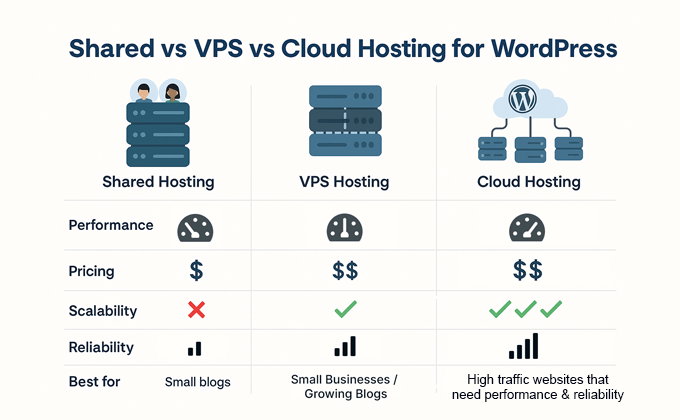
VPS (Virtual Private Server) hosting gives you a fixed portion of resources on a physical server. It’s like having your own slice of a computer.

On the other hand, cloud hosting spreads your site across multiple servers, which means better scalability, uptime, and redundancy. If one server goes down, another takes over.

Is managed WordPress hosting worth the money?

Yes, if you want peace of mind and don’t enjoy managing technical stuff. Managed hosting handles updates, security, performance, and backups for you. It’s especially helpful if you run a business or blog and want to focus on content, not maintenance.

Can I switch hosting types later?

Absolutely. Most hosts make it easy to upgrade from shared to cloud or managed WordPress hosting. Just check with your provider about migration options or ask their support team to help with the move.

Do I need to know coding to use cloud or managed hosting?

No coding required! Many cloud hosting plans are fully managed, and managed WordPress hosting is designed for non-tech users. You can launch and run your site without touching a single line of code.

Which hosting type is best for eCommerce?

If you’re building an online store, cloud hosting or managed WordPress hosting is the better choice. They offer better performance and security for handling customer traffic, payments, and sensitive data. Managed WordPress hosting with WooCommerce support is especially beginner-friendly.

Start Small. Grow Confidently.

Choosing the right hosting is a big decision, but you don’t have to get it perfect on day one. You can start small with a hosting type that fits your current needs and then upgrade.

Shared hosting is a great starting point if you’re building something new. Cloud hosting gives you room to scale. Managed WordPress hosting makes life easier when you’re busy running a site or business.

No matter where you begin, you can always switch later as your site grows.

If you’re still unsure, check out our in-depth hosting reviews—or feel free to reach out to me or someone from the WPBeginner team. We’re always happy to help!

Helpful Guides to Get You Started 🎁

Now that you understand the different hosting options, here are some beginner-friendly tutorials to help you move forward. Whether you’re ready to launch your site or still exploring, these resources will confidently walk you through each step:

I hope this guide helped you understand the difference between shared, managed, and cloud hosting offers. If you are still unsure, remember you are not locked in—you can start small and grow from there. 🙌

If you liked this article, then please subscribe to our YouTube Channel for WordPress video tutorials. You can also find us on Twitter and Facebook.

The post Shared Hosting vs. Cloud Hosting vs. Managed WordPress – What’s the Difference? first appeared on WPBeginner.


from WPBeginner https://ift.tt/71CIyNH
More links is https://mwktutor.com
Monday, 19 May 2025

How to Check Domain Expiration Date: Avoid Website Downtime

Ever tried visiting a website only to find it’s completely gone? Chances are, someone forgot to check their domain expiration date. After helping many different people set up WordPress websites, I’ve seen this happen more times than I’d like to count.

Checking your domain expiration date is a simple but important task that many website owners overlook. But don’t worry – it’s actually pretty straightforward once you know where to look.

I’ve put together this easy-to-follow guide that shows you exactly how to check when your domain expires, using methods I’ve personally tested and verified over the years.

How to Check Domain Expiration Date

Why Check Your Domain Expiration Date?

Have you ever had that moment of panic when you go to your website, and it’s just gone?

I remember once I was launching a small side project. I’d registered a domain, set up a basic landing page, and was ready to go. Then, a few weeks later, the website vanished.

It turns out, in my excitement, I’d completely forgotten about the domain renewal date.

What happens when a domain name expires?

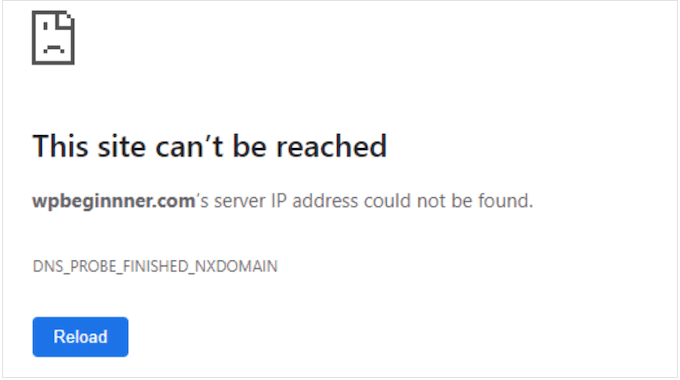
Your website essentially disappears from the internet. Visitors trying to find you will see a ‘This site can’t be reached’ error page, or maybe even a page full of ads put there by someone else.

The Chrome 'site can't be reached' error

Also, the email addresses linked to the domain will stop working. This can lead to missing important emails from clients or customers.

And it’s not just about your website and email. Your domain name is your online identity, so losing it can damage your brand and reputation.

Can You Recover a Domain Which Has Expired?

Now, here’s the somewhat good news. Sometimes, you can recover an expired domain. But it’s not always guaranteed, and it can get complicated and sometimes expensive.

Generally, after a domain expires, it enters a grace period for a few weeks. You usually have the first right to renew it during this time, often at the regular renewal price.

However, if you miss that grace period, things get trickier. The domain might go into a redemption period. This is another phase where you might still be able to get it back, but now you’ll likely face huge redemption fees on top of the renewal cost.

If you miss the redemption period, your domain will become available for anyone to register, including one of our competitors.

Prevention is always better than a cure. Regularly checking your domain expiration date and setting up renewals is way less stressful than the headache of trying to recover an expired domain.

Expert Tip: Are you wondering when someone else’s domain expires because you want to buy it? Just see our guide on domain backorders and how to place them.

Now, I will show you the best ways to check your domain expiration date:

1. Using Your Domain Registrar’s Account Page

If you’re wondering when your domain expires, your domain registrar’s account page is the first place I’d recommend checking. It’s quick, easy, and gives you all the information you need.

The domain registrar is the service where you first registered your domain name, such as Domain.com, Bluehost, GoDaddy, or Namecheap.

Most registrars make it super simple to find your domain expiration date right in your account dashboard. Simply head over to your domain registrar’s website and log in to your account.

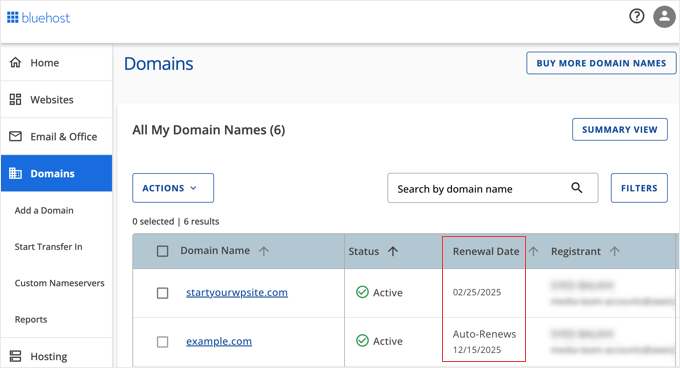
Once you’re logged in, look for something like ‘Domain Management’, ‘My Domains’, or similar. It’s the place where you see a list of all the domains you own through them.

The expiration date is clearly displayed next to each domain or when you click on a specific domain to manage it. Often, it’s right there on the main domain overview page.

Checking Domain Expiration Date in Bluehost

Another bonus is that you’ll usually find options to renew your domain right next to the expiration date.

2. Using WHOIS Lookup Services

WHOIS is like a giant, publicly accessible phonebook for domain names. Its database holds information about who registered a domain, when they registered it, and, importantly, when it expires.

There are tons of websites that offer WHOIS lookup services. But I recommend using the ICANN Lookup tool because ICANN manages domain names globally.

Other popular WHOIS sites include DomainTools and Whois.com.

Using these services is usually very simple. You’ll see a search bar right on the homepage. Just type in the domain name you want to check – like ‘example.com’ – and hit enter or click the ‘Search’ or ‘Lookup’ button.

DomainTools' Whois Lookup Tool

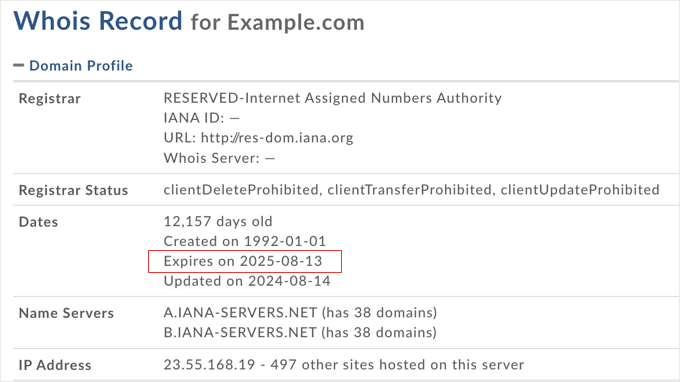
The WHOIS service then fetches the domain information and displays it to you.

And buried in all that information, you’ll almost always find the expiration date.

DomainTools' Whois Lookup Results

I have found WHOIS lookup services, especially ICANN Lookup, to be incredibly convenient for quick checks. This is especially true when you just need to know the expiry date and don’t want to log into any accounts.

Tip: WHOIS Privacy

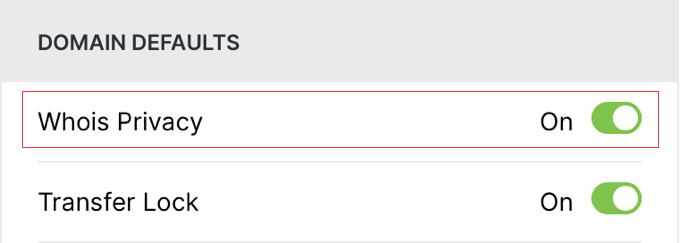
Now, a little heads-up about privacy. You might have heard of WHOIS privacy or domain privacy.

Many people use privacy services to protect their personal information from being publicly listed in the WHOIS database.

The WHOIS Privacy Setting on Hover's Account Settings Page

If a domain owner uses privacy services, then some of the contact details in the WHOIS record might be masked or replaced with generic contact information.

But the expiration date is still almost always publicly visible, or at least easily findable within the WHOIS output. It’s one piece of information they usually don’t hide.

So, even with privacy services in place, WHOIS and especially ICANN Lookup are still reliable for checking that domain expiration date.

3. Setting Up Domain Name Expiry Notifications

I’ve already shown you how to check your domain expiration date. But what about making sure you never miss it in the first place? That’s where domain expiry notifications come in handy.

They are like setting up a safety net for your online presence. The problem is, it’s easy to forget about domain renewals, especially if you have multiple domains or registered them a while ago.

Expiry notifications are your defense against this. They’re like little digital nudges, reminding you to take action before it’s too late.

Setting Up Domain Expiry Notifications With Your Domain Registrar

Where do you actually set up these notifications? The best and most direct place is usually with your domain registrar. They all typically offer built-in notification systems.

For example, Bluehost will send you automatic domain expiration notifications by default. They will email you at least two reminders within 60 days before the expiration date, and a final reminder 5 days before.

Some registrars let you customize these notifications. For example, you may be able to set the notification frequency to a 60-day, 30-day, or 7-day email reminder.

You might also be able to specify notification email addresses. This is useful if you have a team managing domains or want reminders sent to a different email address than your main account email.

Setting Up Third-Party Domain Expiry Notifications

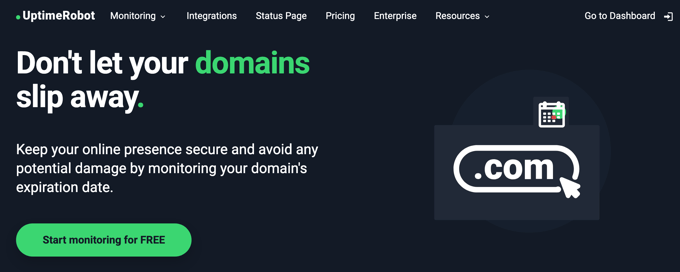
If you’re really serious about long-term domain monitoring, then you could even consider using dedicated domain monitoring services like UptimeRobot.

Domain Expiration Monitoring With UptimeRobot

You can use the service’s domain monitoring to receive alerts 30, 14, 7, and 1 day before your domain name expires and view the expiration date anytime in your dashboard.

Notifications can be sent via email, SMS, voice call, or through one of many integrations (such as Slack, Zapier, Splunk, and more).

Tip: UptimeRobot can also send you notifications to monitor your website’s server uptime.

But honestly, for most people, setting up email notifications through your domain registrar is more than enough to keep on top of your domain renewals and avoid an unexpected domain expiration.

4. Enabling Auto Renewals So Your Domain Doesn’t Expire

Want to know the absolute best way to make sure your domain never expires accidentally? It’s simple: set up auto-renewal.

Auto-renewal is a service your domain registrar provides that automatically renews your domain registration right before it expires. Think of it as an automatic bill payment for your domain name.

Typically, a few weeks or days before your domain expiration date, the registrar will automatically charge the payment method you have on file with them – your credit card, debit card, or whatever you use. This will pay for your domain renewal for another year (or however long you choose for your renewal period).

I’ve been using auto-renewals for years, and they make things much easier. I don’t have to remember renewal dates or manually renew each domain—it just happens.

If you haven’t already enabled automatic renewals on your domain, then you can do this easily next time you renew it. With most registrars, it is offered as a very clear option during the domain renewal process.

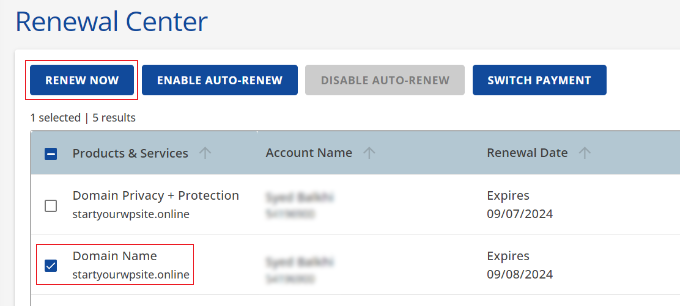
For example, with Bluehost, you will see buttons to enable or disable auto-renewal at the top of the Renewal Center page.

Select domain to renew in Bluehost

All you need to do is click the button labeled ‘Enable Auto-Renew’.

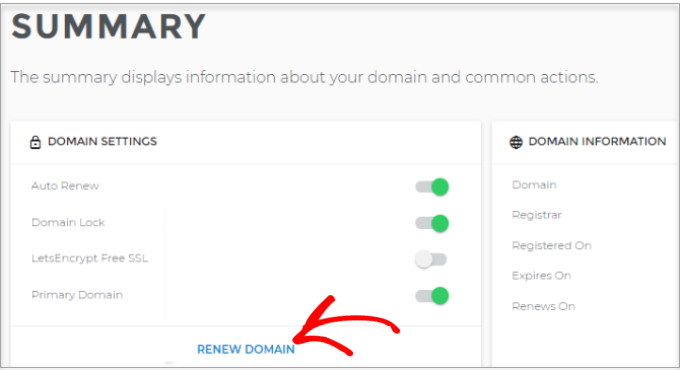
With Domain.com, the option is presented as a simple toggle switch instead. Just make sure the switch is enabled when you reach the Summary page before you pay for your domain renewal.

Click renew domain link

Simply look for the automatic renewal option on your domain registrar. This is a preferred method of payment, so it is normally displayed prominently.

You’ll find more information about the renewal process in our guide on how to renew a domain name for all major hosting registrars.

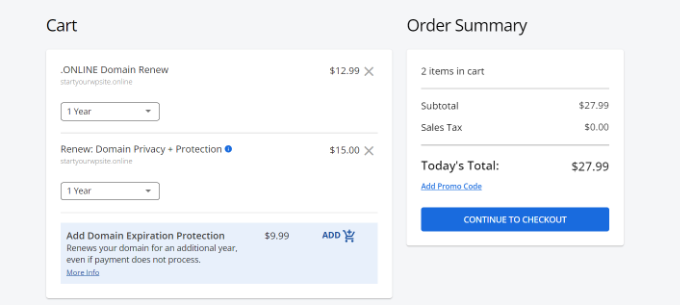
Plus, many domain registrars like Bluehost and HostGator offer domain expiration protection as an option. For a small fee, this will renew your domain for an additional year if your automatic payment is unsuccessful.

Pay for domain renewal in Bluehost

FAQ About Checking Domain Expiration Dates

Even after reading my guide on how to check your domain expiration date, you may still have questions. Here are answers to the questions I’m asked most frequently:

1. Why is it so important to check my domain expiration date?

Letting your domain expire can cause lots of problems. Your website could go offline, your emails might stop working, and you could even lose your domain name completely.

Checking the expiration date is a simple way to avoid these headaches and protect your online presence.

2. Do domain names expire automatically?

Yes, domain name registrations are typically for a set period—usually a year, but sometimes longer. If you don’t renew your domain registration before the expiration date, it will expire. It’s not a one-time purchase, but more like renting your domain name for a specific period.

3. What happens if I forget to renew my domain and it expires?

If your domain expires, then your website and linked email services will likely stop working. During a grace period, you might be able to renew it at the regular price.

But if you miss that, then you could face higher redemption fees, or even lose the domain name if someone else registers it.

4. Can I check the expiration date of any domain name, even if I don’t own it?

Yes, absolutely! Methods like WHOIS lookup services are designed to let you check the expiration date (and other public info) for almost any registered domain name.

5. Do I need to pay to use WHOIS lookup services?

Most basic WHOIS lookup services are free to check domain expiration dates and basic domain information. Some of these sites also offer more advanced paid services, but the basic lookup is usually free.

6. What is domain auto-renewal, and should I set it up?

Auto-renewal is a service offered by domain registrars that automatically renews your domain before it expires, charging your saved payment method.

I strongly recommend setting up auto-renewal! It’s the most foolproof way to prevent accidental domain expiration and ensures your website and email stay online without interruption.

7. I checked my domain expiration date, and it’s coming up soon. What should I do?

Renew your domain as soon as possible! The easiest way is usually through your domain registrar’s account page. You can typically renew for another year or multiple years. If you have auto-renewal set up, double-check that it’s enabled and your payment information is current.

I hope this tutorial helped you learn how to check your domain expiration date. You may also want to see our guide on how to check domain name availability or our expert pick of the best domain name generators to help you pick a domain fast.

If you liked this article, then please subscribe to our YouTube Channel for WordPress video tutorials. You can also find us on Twitter and Facebook.

The post How to Check Domain Expiration Date: Avoid Website Downtime first appeared on WPBeginner.


from WPBeginner https://ift.tt/csy9KxX
More links is https://mwktutor.com

Friday, 16 May 2025

Best Cloud Hosting Providers for WordPress in 2025 (Expert Pick)

I started building websites in 2004, and like most beginners, I used shared hosting. It was affordable, simple, and got the job done for my early projects.

But as my online businesses grew, so did traffic, including on WPBeginner. Shared hosting started slowing me down—literally. I had to deal with downtime, slow page loads, and frustrating support.

Since then, I’ve tested just about every type of hosting you can think of—shared, VPS, dedicated, cloud, and even custom enterprise setups. I’ve seen what works, what breaks, and what actually helps websites grow without stress.

Today, most of my websites run on cloud hosting, and I couldn’t be happier with it. I can scale resources as needed and handle millions of pageviews without worrying about downtime.

This guide is based on my own experience, my team’s experience, and real testing. Whether you’re starting fresh or ready to scale, I’ll help you find the best cloud hosting—without wasting time or money.

Here’s why you can trust my recommendations:

  • My team and I have used many of these cloud hosts for our own sites and side projects. (See our editorial process.)
  • I test each provider using real WordPress installs, load testing tools, and performance monitors.
  • With my annual survey, I review support experiences, pricing changes, and real user feedback from WPBeginner readers.
  • My team and I have spent over 16 years working with WordPress hosting, and I still use these platforms today. (Meet my team members.)

If you want fast, secure, and beginner-friendly cloud hosting for WordPress, here are my top picks for 2025.

Expert comparison of the best c;loud hosting providers

Top Picks (Quick Comparison)

Host Starting Price Load Time Best For User Score WPBeginner Rating
SiteGround $100/mo 397 ms 🏆 Best All-Round Hosting 4.9/5 A++
(Review)
Hostinger $7.99/mo 374 ms 💸 Best Budget Cloud Hosting 4.9/5 A++
(Review)
Bluehost Cloud $75/mo 255 ms 🚀 High-Traffic Sites 4.8/5 A+
(Review)
Rocket.net $30/mo 448 ms ⚡ Premium Performance 4.8/5 A+
(Review)
WordPress.com $12.50/mo 636 ms 🛒 eCommerce & Small Business 4.8/5 A+
(Review)
DreamHost Cloud $4.50/mo 439 ms 🔧 Developer-Friendly Cloud Hosting 4.7/5 A
(Review)
Scala Hosting $12.71/mo 362 ms 📦 VPS-Like Hosting on a Budget 4.8/5 A
Pressable $25/mo 750 ms 👥 WooCommerce Store Owners & Agencies 4.9/5 A
(Review)
Kinsta $30/mo 635 ms 💼 Premium Managed WordPress Hosting 4.9/5 A
Google Cloud Varies 415 ms ☁️ Advanced Users & Server Controls 4.7/5 B+
AWS Cloud (Amazon Web Services) Varies 684 ms 🏗️ Infrastructure-Level Hosting 4.6/5 B+

Cloud hosting has become the go-to solution for WordPress users who need faster load times, better uptime, and the flexibility to handle growing traffic. But if you’re not familiar with how cloud hosting works, this section will help you understand the basics and how I test each provider.

What Is Cloud Hosting for WordPress?

Cloud hosting is a type of web hosting where your website runs on a network of connected servers, instead of being tied to just one physical machine like with shared or VPS hosting.

This setup allows your site to use more resources when it needs them, making it faster and more reliable, especially during traffic spikes.

Shared vs Managed vs Cloud hosting (explained)

Unlike shared hosting, cloud platforms don’t slow down when someone else’s site gets busy. And compared to VPS or dedicated servers, you don’t have to worry about manual upgrades or server maintenance.

It’s perfect for WordPress users who want better performance, more control, and room to grow without jumping through technical hoops.

Pros and Cons of Cloud Hosting

I’ve used cloud hosting for years on high-traffic blogs, eCommerce sites, and even custom apps. Here are the pros and cons that I’ve found.

Advantages of Cloud Hosting

  • Scalability: You can easily increase resources without downtime.
  • Speed: Faster load times due to dedicated resources and global CDNs.
  • Reliability: If one server fails, your site stays online using the others.
  • Better Uptime: Most providers guarantee 99.9% or better uptime.
  • Stronger Security: Built-in DDoS protection, backups, and isolation from other sites.

Disadvantages of Cloud Hosting

  • Higher Cost: Cloud hosting is more expensive than shared hosting.
  • Learning Curve: Some platforms are not beginner-friendly.
  • Resource Limits: Some plans still limit traffic or storage, so check the fine print.

Overall, the benefits far outweigh the downsides, especially if you’re serious about site performance and uptime.

How I Test Cloud Hosting Providers

I believe in full transparency. I don’t just rely on marketing claims—I sign up, install WordPress, and test each host myself.

For each provider in this guide, I set up a live site using a default WordPress theme with demo content, images, and plugins to mimic a real-world site.

Then, I run tests using these industry-standard tools:

  • Pingdom: Measures page load speed from different locations.
  • UptimeRobot: Monitors site uptime 24/7.
  • K6 (by Grafana): Sends virtual users to test how well the server handles traffic spikes.
  • Bitcatcha: Checks server response time from global locations.

I also evaluate support response time, ease of use, dashboard design, and pricing terms. If a host makes it hard to cancel or get a refund, then I won’t recommend it.

This way, you’re not just getting opinions—you’re getting data and firsthand experience.

Need Help? Hire a WordPress Expert!🙋

Need help with your new website? Check out WPBeginner’s WordPress Website Design service. For a small fee, my team of professional WordPress experts will help bring your idea to life.

Our service includes:

  • A dedicated project manager to bring your idea to life.
  • Multiple revisions according to your needs.
  • Blog setup, WooCommerce setup, and full SEO optimization.

Just check out our WordPress Website Design service page for more details!

The Best Cloud Hosting Providers for WordPress

Have you ever noticed how every cloud hosting provider claims to be the fastest, most reliable, and most scalable option for WordPress?

With dozens of companies offering similar-sounding features and using buzzwords like “infinite scalability” and “next-gen infrastructure,” finding the right cloud hosting solution can feel like trying to spot the differences in identical twins.

I’ve narrowed down the best WordPress cloud hosting providers based on real-world performance, value for money, and user experience. Let’s look at each one individually to see why it made the cut and what type of website it works best for.

1. SiteGround

Quick info: 🔹Starting from: $100/mo 🔹Free Domain: No 🔹Sites Allowed: 1 🔹Disk Space: 10GB

SiteGround is one of the fastest and most dependable cloud-based hosting providers I’ve used. It’s one of the top-rated hosting companies and consistently delivers strong performance and top-notch support.

It’s built on Google Cloud infrastructure, which gives your site high-speed SSD storage (faster hard drives) and automatic scalability. I also like how beginner-friendly its custom dashboard is – no cPanel needed.

SiteGround includes a free CDN, daily backups, SSL, email hosting, and one-click staging. These features are especially helpful when managing multiple sites or testing changes before going live.

Most importantly, their live chat support is consistently helpful and WordPress-savvy. That’s a big reason I keep recommending SiteGround to business owners and bloggers.

SiteGround
Performance
Uptime: 100%
Page load time: 397 ms
Avg. Response Time: 123 ms
WPBeginner Rating: A++
User Rating: 4.9/5
Discount: SiteGround Coupon Code
Best For: Best all-round cloud hosting 🏆

Pros of Using SiteGround

  • Built on Google Cloud for maximum speed and uptime
  • Free daily backups, SSL, email, and staging tools
  • Beginner-friendly custom dashboard (no cPanel)
  • Excellent live chat support, available 24/7
  • Highly rated by WordPress users and developers

Best For

  • Bloggers and small business owners who want fast, scalable hosting
  • WordPress users who value top-tier support and simplicity
SiteGround Performance Tests

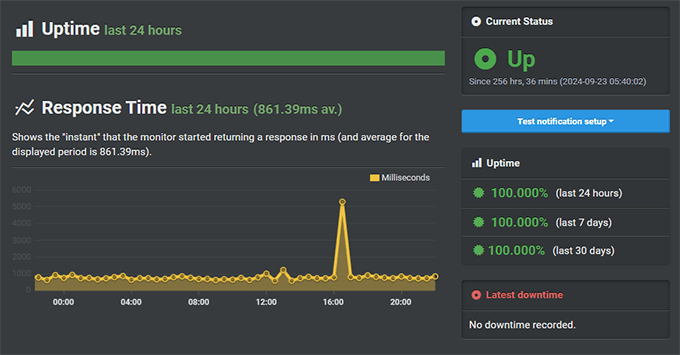
Uptime

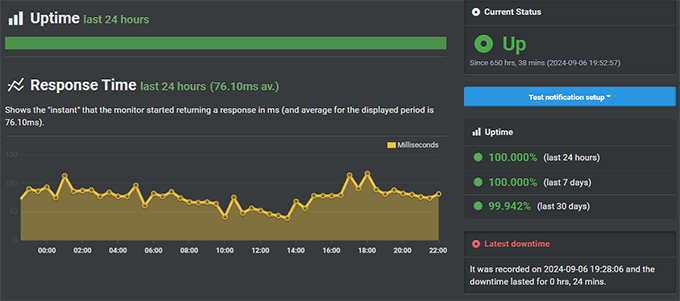
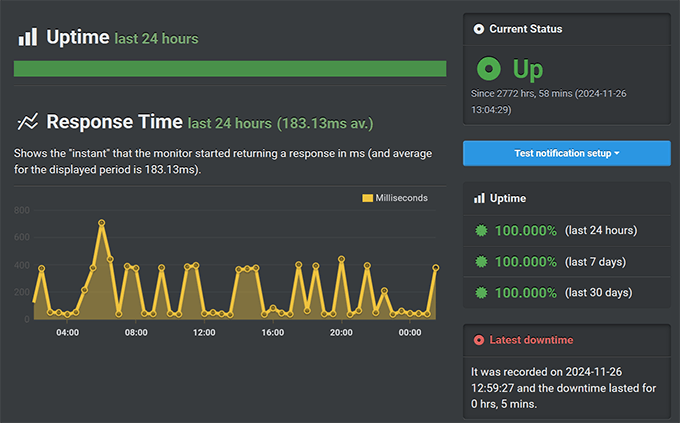
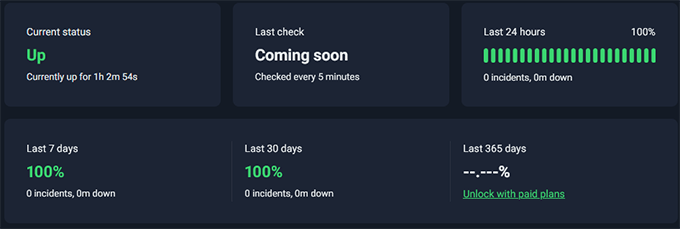
I recorded 100% uptime on my SiteGround test site — a great result for any cloud host.

SiteGround Uptime Test

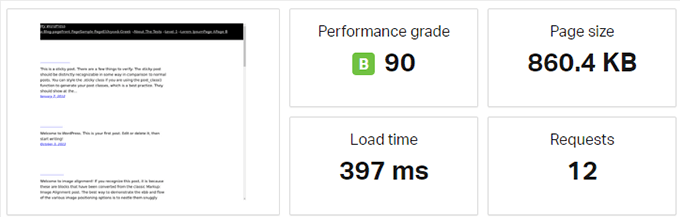
Page Load Speed

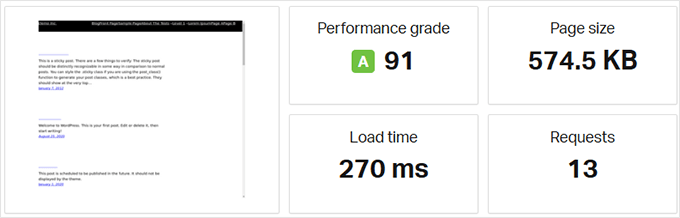
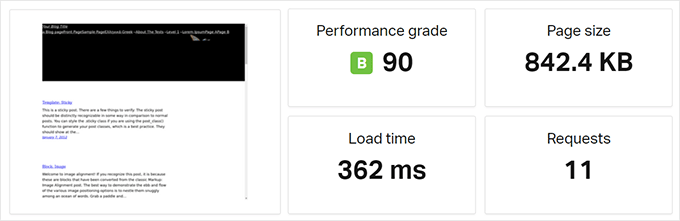
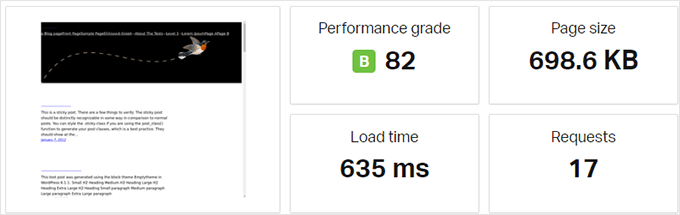
The average page load time was 397 ms in my Pingdom tests across North America and Europe.

SiteGround Speed Test

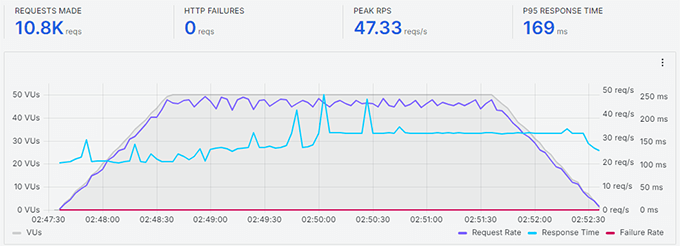
Stress Testing

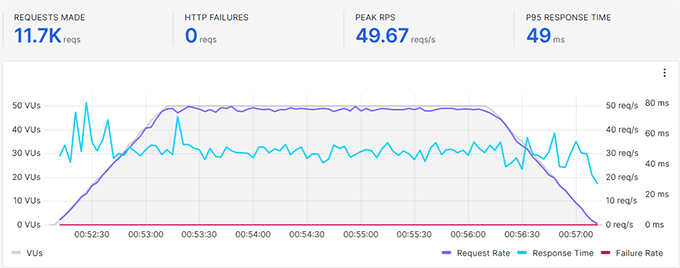
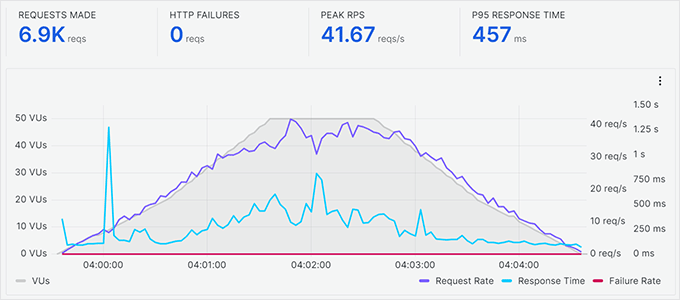
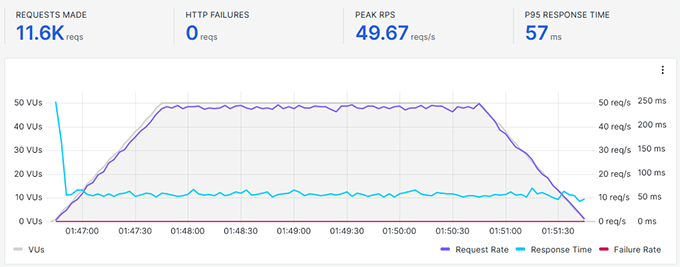
Using K6 to simulate 50 users, SiteGround maintained stable speeds with no major slowdowns or errors.

SiteGround Stress Test

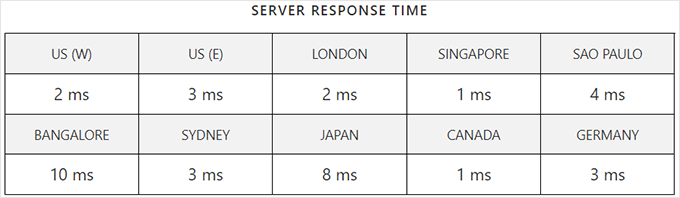
Global Response Times:

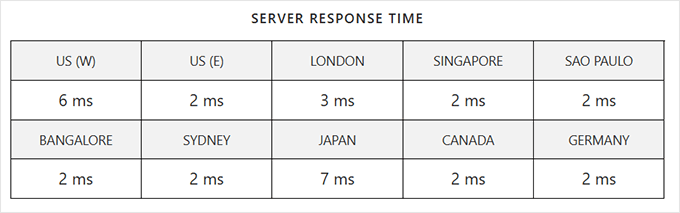
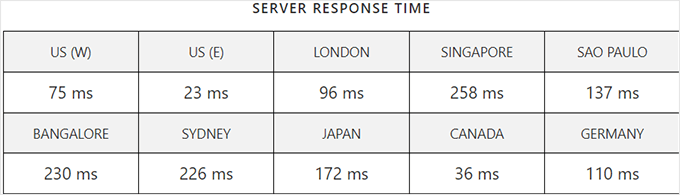
Due to Google Cloud Infrastructure, SiteGround’s response time was great from all geographic locations. It was slightly higher in India, but still within an acceptable range.

SiteGround response time test result

My Experience: I host several sites on SiteGround, including WPBeginner. I’ve found it to be fast, dependable, and easy to use, which is everything you want in a WordPress cloud host. You can read more about it in the case study discussing why I moved WPBeginner to SiteGround. For a more in-depth analysis, take a look at my full SiteGround review.

2. Hostinger

Quick info: 🔹Starting from: $7.99/mo 🔹Free Domain: Yes 🔹Sites Allowed: 1 🔹Disk Space: 50GB

Hostinger offers some of the most affordable cloud hosting for WordPress. Despite the low price, I’ve found their platform surprisingly fast and easy to use.

Their custom control panel (hPanel) is one of the cleanest interfaces I’ve tested. It’s simple enough for beginners but gives you control over advanced features like backups, staging, and caching.

Hostinger also includes LiteSpeed caching, a built-in Cloudflare CDN, and malware scanning on all plans. These are features I don’t usually expect at this price point.

If you’re just getting started or running a budget-conscious project, Hostinger is one of the best cloud-based platforms to grow with.

You can start with their Premium or Business plans. I found them to be quite excellent for smaller sites. You can also easily switch to their Cloud Startup plan for more resources as your business grows.

Hostinger
Performance
Uptime: 99.99%
Page load time: 374 ms
Avg. Response Time: 147 ms
WPBeginner Rating: A++
User Rating: 4.9/5
Discount: Hostinger Coupon Code
Best For: Budget-friendly cloud WordPress hosting 💸

Pros of Using Hostinger

  • Lowest starting price for cloud-based WordPress hosting
  • Clean, custom hPanel interface (great for beginners)
  • Includes LiteSpeed caching, CDN, and malware scanning
  • One-click WordPress installs and staging are available
  • Consistent uptime and quick support response

Best For

  • Beginners looking for affordable cloud hosting
  • Freelancers, students, or side projects with growth potential
Hostinger Performance Tests

Uptime

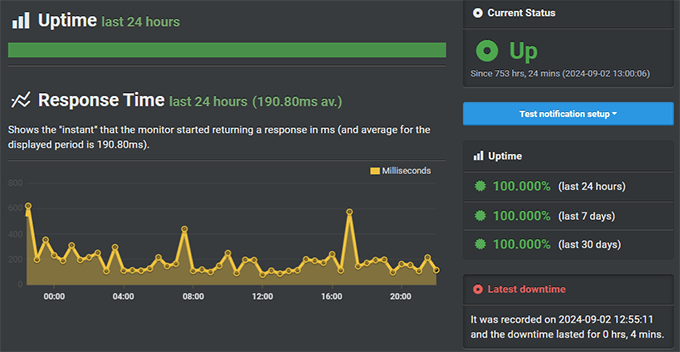
Hostinger maintained 99.99% uptime over 30 days of testing using UptimeRobot.

Hostinger Uptime Test

Page Load Speed

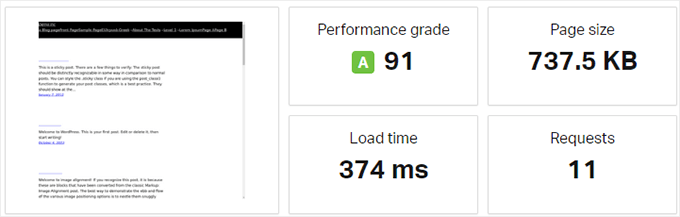
The average page load time was 374 ms across multiple global Pingdom locations.

Hostinger Speed Test

Stress Testing

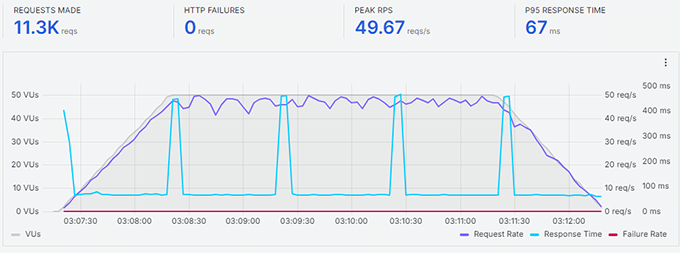
During load tests with 50 concurrent users via K6, performance remained smooth with no timeouts.

Hostinger Stress Test

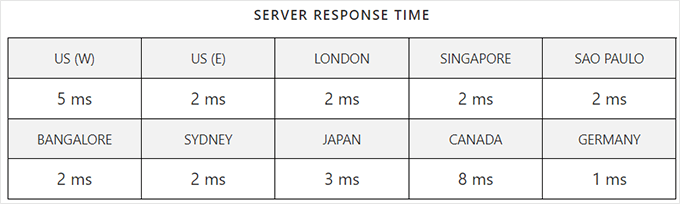
Global Response Time:

My Hostinger test site had a great response time from all geographic locations.

Hostinger response time results

My Experience: I often recommend Hostinger for beginners who want real cloud performance on a budget. It’s reliable, fast, and easy to manage even for non-technical users. I also like their fast and friendly customer support, which is available 24/7 via live chat. For more details, see my team’s full Hostinger review.

3. Bluehost Cloud

Quick info: 🔹Starting from: $75/mo 🔹Free Domain: Yes 🔹Sites Allowed: 5+ 🔹Disk Space: 100GB SSD

Bluehost Cloud offers premium hosting plans from a long-time WordPress-recommended provider. It’s built specifically for high-performance, cloud-native WordPress hosting and is ideal for serious sites that need speed and scale.

Unlike traditional Bluehost plans, this cloud platform is built on a multi-server architecture with instant scalability and enhanced caching. I also found the dashboard very clean and focused on WordPress users.

It also comes with free daily backups, staging, malware detection, and their WP Pro tools. The setup experience is smooth, and the speed improvements are noticeable, especially under load.

This platform is more expensive than shared hosting, but if you’re running an established business or an online store, it’s worth the investment.

Bluehost
Performance
Uptime: 99.98%
Page load time: 255 ms
Avg. Response Time: 118 ms
WPBeginner Rating: A+
User Rating: 4.8/5
Discount: Bluehost Coupon Code
Best For: High-traffic WordPress sites 🚀

Pros of Using Bluehost Cloud

  • Built for performance with cloud-native architecture
  • Excellent speed and load handling (great for eCommerce)
  • Free domain, backups, malware protection, and staging
  • Optimized specifically for WordPress use cases
  • Easy dashboard with Pro features built in

Best For

  • High-traffic blogs, WooCommerce stores, or agency websites
  • Site owners ready to upgrade from shared or VPS to premium cloud
Bluehost Cloud Performance Tests

Uptime

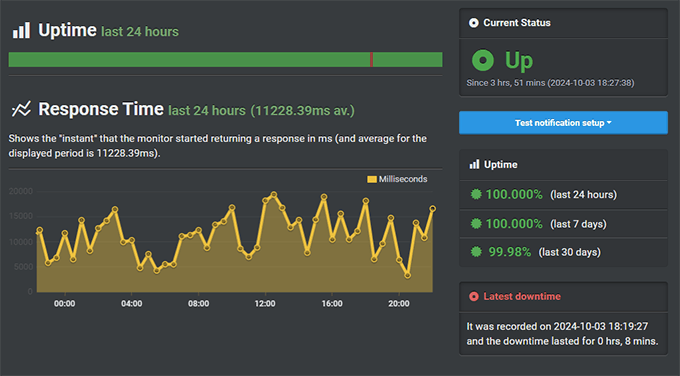
I recorded 99.98% uptime using UptimeRobot with Bluehost Cloud.

Page Load Speed

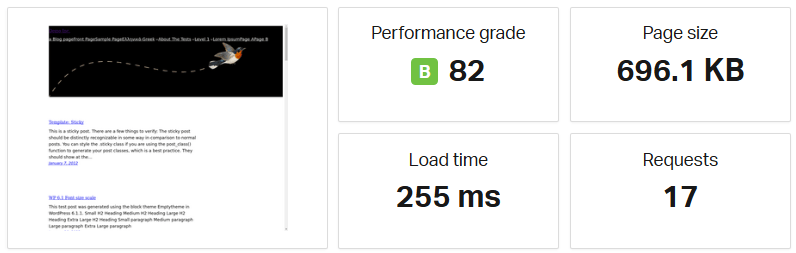
It had one of the fastest page load times in my tests — just 255 ms across US and EU servers.

Bluehost Cloud speed test result

Stress Testing

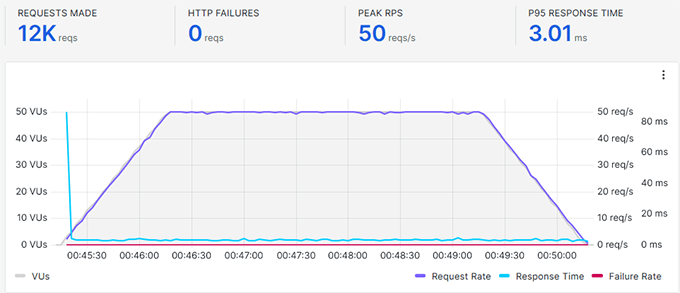
K6 stress tests showed excellent stability with 50 users and no bottlenecks.

Bluehost Cloud stress test

Global Response Time

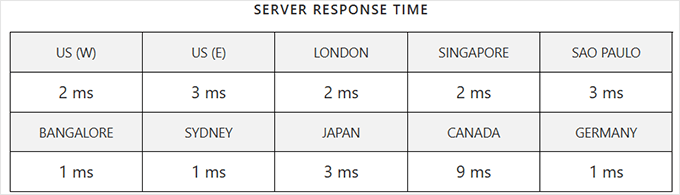
Response times were strong in the US and Europe but slower in Asia and Australia.

Bluehost Cloud response time

My Experience: I’m a long-time Bluehost customer and have used Bluehost Cloud for business websites that needed premium speed and guaranteed uptime. It’s a big step up from shared plans and one of Bluehost’s best upgrades yet. For more details, take a look at my team’s full Bluehost review.

4. Rocket.net

Quick info: 🔹Starting from: $30/mo 🔹Free Domain: No 🔹Sites Allowed: 1 🔹Disk Space: 10GB

Rocket.net is one of the fastest WordPress cloud hosting platforms I’ve ever tested. It’s fully managed and comes with Cloudflare Enterprise built in, which alone offers major value for money.

Rocket.net delivers excellent performance even under traffic surges. I didn’t need to configure caching or security — everything worked out of the box. The dashboard is incredibly simple, even for non-technical users.

It’s more expensive than beginner-focused hosts, but it’s perfect if you want top-tier speed, built-in CDN, WAF (Website Application Firewall), and expert support without lifting a finger.

If performance is your top priority, Rocket.net is one of the best premium WordPress cloud hosts I can recommend.

Rocket.net
Performance
Uptime: 100%
Page load time: 448 ms
Avg. Response Time: 119 ms
WPBeginner Rating: A+
User Rating: 4.8/5
Discount: Rocket.net Coupon
Best For: Premium performance ⚡

Pros of Using Rocket.net

  • Cloudflare Enterprise is included at no extra cost
  • Blazing-fast speeds even under load
  • One of the simplest managed dashboards I’ve used
  • No need to configure caching or CDN manually
  • Excellent support from WordPress experts

Best For

  • Agencies and businesses that prioritize speed and security
  • Users who want premium managed WordPress hosting with zero maintenance
Rocket.net Performance Tests

Uptime

Rocket.net maintained 100% uptime during my 30-day test window.

Rocket.net Uptime Test

Page Load Speed

Pages loaded in just 448 ms on average (270 ms on the US East Coast) with no need for plugin-based optimization.

Rocket.net Speed Test

Stress Testing

Rocket.net held steady with 50 concurrent virtual users and didn’t show any traffic lag during K6 tests.

Rocket.net Stress Test

Global Response Time

I was delighted by the fast server response time from all geographic locations.

Rocket.net response time

My Experience: I use Rocket.net for some of my businesses where I need top-tier speed with zero setup. Their Cloudflare integration and server stack make it feel like everything is pre-optimized out of the box. For more details, see my team’s full Rocket.net review.

5. WordPress.com

Quick info: 🔹Starting from: $12.50/mo 🔹Free Domain: Yes 🔹Sites Allowed: 1 🔹Disk Space: 50GB

WordPress.com is a fully managed cloud hosting platform built by Automattic. I believe it is one of the easiest ways to launch a secure, fast, and scalable WordPress site without worrying about hosting setup or server tuning.

It includes built-in caching, CDN, backups, malware protection, and SEO tools. You also get access to WordPress.com’s own block editor enhancements and customer support, which I’ve found responsive and helpful for beginners.

What makes WordPress.com unique is how seamlessly it integrates WordPress hosting, security, and publishing tools under one roof. It’s a solid option for those who want simplicity without sacrificing performance.

Although it has some limitations as an all-in-one solution, it’s incredibly convenient for small businesses and bloggers.

WordPress.com
Performance
Uptime: 100%
Page load time: 636 ms
Avg. Response Time: 148 ms
WPBeginner Rating: A+
User Rating: 4.8/5
Discount: WordPress.com Coupon
Best For: eCommerce and small business 🛒

Pros of Using WordPress.com

  • Hosted by the folks who know WordPress inside out
  • Built-in performance, security, SEO, and backups
  • No need to worry about updates, caching, or plugins
  • Beginner-friendly dashboard and editor
  • Strong support and uptime for business websites

Best For

  • Bloggers, freelancers, and small business owners
  • Anyone who wants “set it and forget it” WordPress hosting
WordPress.com Performance Tests

Uptime

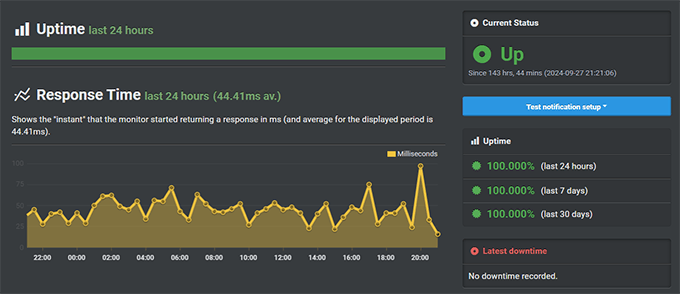
WordPress.com had 100% uptime during my tests, which is excellent for managed cloud hosting.

WordPress.com uptime test

Page Load Speed

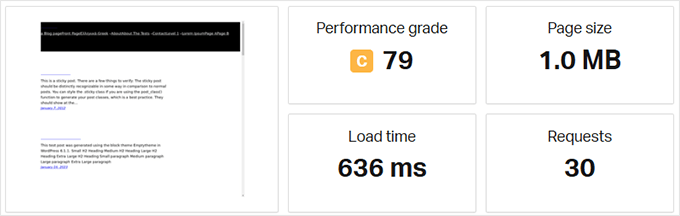
The site loaded in about 636 ms on average across key regions, which is slightly slower than developer-focused hosts but still fast.

WordPress.com page speed test

Stress Testing

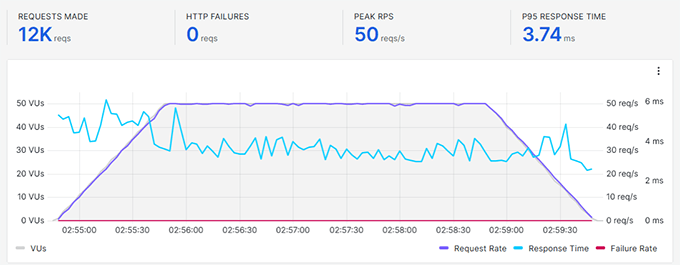
It handled 50 virtual users in my K6 test with no slowdowns, which shows their infrastructure is solid.

WordPress.com Stress Test

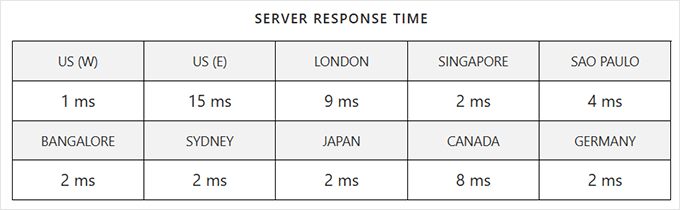
Global Response Time

WordPress.com had great server response times across the board.

My Experience: I recommend WordPress.com as an excellent option for beginners and small business websites. It does have some limitations, which is why I recommend starting with Business or Commerce plans, which offer more flexibility. For more details, see my team’s detailed WordPress.com review.

6. DreamHost Cloud

Quick info: 🔹Starting from: $4.50/mo 🔹Free Domain: No 🔹Sites Allowed: Unlimited (manual setup) 🔹Disk Space: Scalable SSD

DreamHost Cloud is more developer-focused than some others on this list. It gives you full control of a cloud server without the limitations of managed plans, which makes it a great option for advanced users.

You can launch WordPress on their cloud compute platform using your own stack (LAMP, NGINX, etc.) and scale it however you want. I’ve used it for staging environments and sandbox sites where flexibility is more important than UI.

It’s not ideal for beginners, but if you know your way around Linux or want to manage your own cloud instance, DreamHost Cloud gives you tons of freedom at a very low cost.

It’s also great for developers who want to test applications or deploy advanced setups affordably.

DreamHost
Performance
Uptime: 99.89%
Page load time: 439 ms
Avg. Response Time: 174 ms
WPBeginner Rating: A
User Rating: 4.7/5
Discount: DreamHost Coupon
Best For: Developers and technical users 🔧

Pros of Using DreamHost Cloud

  • Very low starting cost for full cloud access
  • Great for developers needing sandbox or staging environments
  • Custom stack deployment (LAMP, NGINX, etc.)
  • Scalable compute and storage resources
  • No fixed limits on bandwidth or site count

Best For

  • Advanced users and developers
  • Testing, staging, or custom WordPress cloud stacks
DreamHost Performance Tests

Uptime

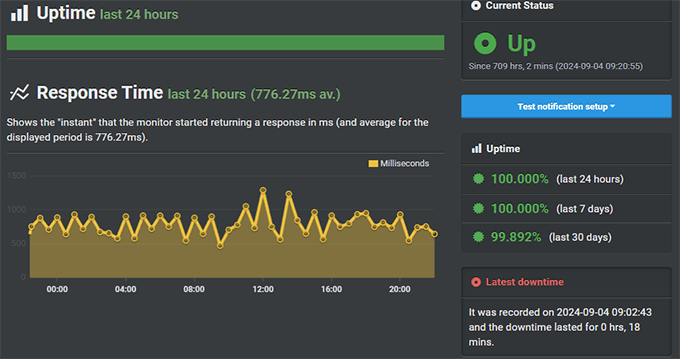
Over 30 days, my DreamHost Cloud site maintained 99.89% uptime, which is solid for a self-managed setup.

DreamHost Uptime Test

Page Load Speed

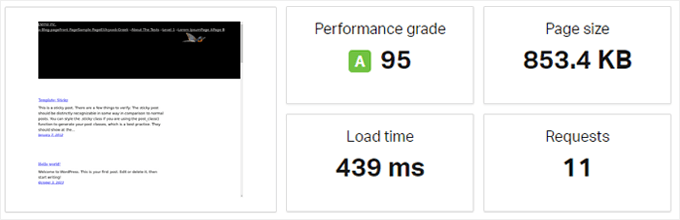
The page load time was 439 ms — faster than I expected from a DIY setup.

DreamHost Speed Test

Stress Testing

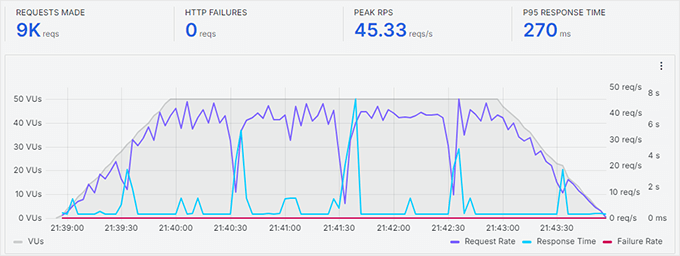
With K6, the server handled 50 concurrent users smoothly with minimal latency spikes.

DreamHost Stress Test

My Experience: I have tested DreamHost Cloud for development sites and custom testing projects. I like that it gives total control without breaking the bank. My team has a detailed DreamHost review with more information on their regular WordPress plans.

7. Scala Hosting

Quick info: 🔹Starting from: $12.71/mo 🔹Free Domain: Yes 🔹Sites Allowed: Unlimited 🔹Disk Space: 50GB SSD

Scala Hosting offers managed WordPress cloud hosting at an affordable price. I’ve used it on testing sites, and it consistently delivers solid performance, responsive support, and excellent value for money.

What makes Scala unique is its SPanel — an alternative to cPanel that’s lightweight, easy to use, and doesn’t require extra licensing. You get full control of your cloud VPS with a beginner-friendly dashboard.

Scala Hosting includes free daily backups, a built-in firewall, malware scanning, and fully managed support. Its plans are also scalable, so you can adjust resources as your site grows.

It’s especially good for those who want VPS-like power without managing everything themselves.

Scala Hosting
Performance
Uptime: 99.99%
Page load time: 362 ms
Avg. Response Time: 142 ms
WPBeginner Rating: A
User Rating: 4.8/5
Discount: Scala Hosting Coupon
Best For: VPS-style cloud WordPress hosting on a budget 🧰

Pros of Using Scala Hosting

  • Includes free SPanel (cPanel alternative with no license fees)
  • Fully managed VPS cloud with strong security features
  • Excellent speed and uptime across global test locations
  • Scalable RAM, CPU, and storage on demand
  • Helpful and fast live chat support

Best For

  • WordPress users who want VPS-style control with managed support
  • Agencies, resellers, and site owners who need scalability
Scala Hosting Performance Tests

Uptime

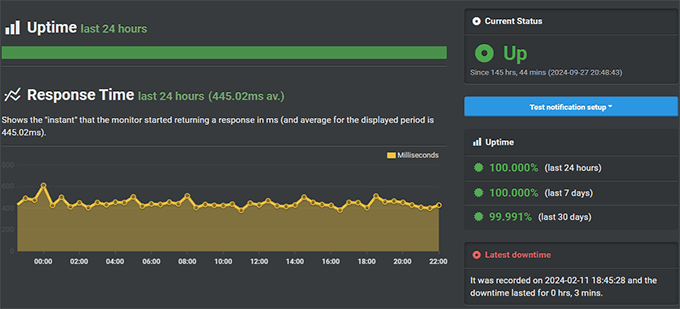
Scala Hosting delivered 99.99% uptime during my monitoring period.

Scala Hosting uptime

Page Load Speed

The average page load time was 362 ms based on Pingdom tests from the US and EU regions.

Scala Hosting speed test

Stress Testing

K6 tests showed smooth handling of up to 50 virtual users with no performance dips.

Scala Hosting stress testing

Global Response Time

Response times were excellent, averaging just 120.4 ms globally, with faster results in the US and Europe.

Scala response time

My Experience: When I signed up for Scala Hosting, I enjoyed the smooth user experience. I also liked how it balances the ease of use of a managed WordPress host with developer-friendly flexibility. I reached out to support for some queries, and their response time and problem-solving skills were excellent. For more details, see our full Scala Hosting review.

8. Pressable

Quick info: 🔹Starting from: $25/mo 🔹Free Domain: No 🔹Sites Allowed: 1–Unlimited (based on plan) 🔹Disk Space: 20–200GB SSD

My team members and I have tested Pressable for WooCommerce stores and high-traffic blogs where stability really matters. It’s developed by Automattic, the same team behind WordPress.com and WooCommerce, so everything is optimized for WordPress right out of the box.

One thing I really liked was how smooth the onboarding felt. Migrations were handled for me, and I didn’t have to think about caching, CDN, or security setup — it’s all included. Their dashboard is simple but powerful, and I could spin up staging sites or clone installs with just a few clicks.

It includes enhanced security, daily backups, malware scanning, and server-side caching. I’ve tested it under load and found it to be fast and consistent, especially for dynamic WooCommerce pages.

It’s priced at a premium, but if you’re running a serious WordPress site, it delivers the kind of reliability and support I look for in client projects.

Pressable
Performance
Uptime: 100%
Page load time: 750 ms
Avg. Response Time: 113 ms
WPBeginner Rating: A
User Rating: 4.9/5
Discount: Pressable Coupon
Best For: WooCommerce store owners & agencies 🛒

Pros of Using Pressable

  • Created by Automattic (makers of WordPress.com & WooCommerce)
  • Includes enhanced security, CDN, and daily backups
  • Excellent speed under high traffic
  • Easy-to-use dashboard with cloning, staging, and team tools
  • Rock-solid uptime and responsive support

Best For

  • WooCommerce store owners and business websites
  • Agencies and professionals managing multiple client installs
Pressable Performance Tests

Uptime

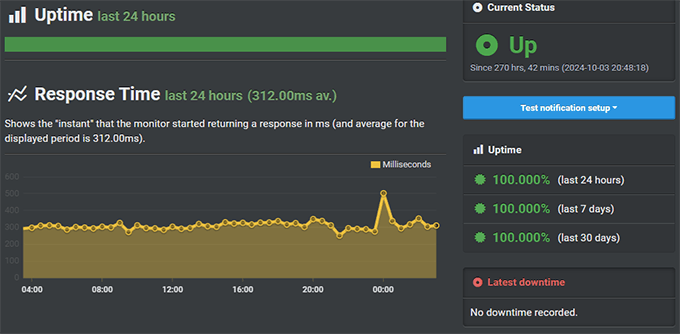
Pressable held 100% uptime across my monitoring period using UptimeRobot.

Pressable uptime test result

Page Load Speed

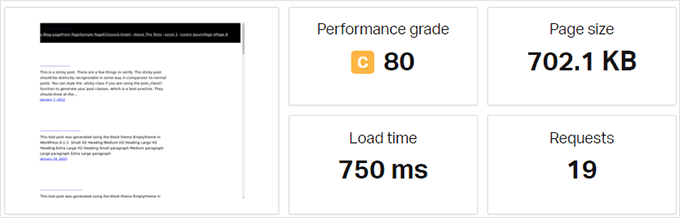
The average load time was just 750 ms, with no need to configure extra performance plugins.

Pressable page load speed test

Stress Testing

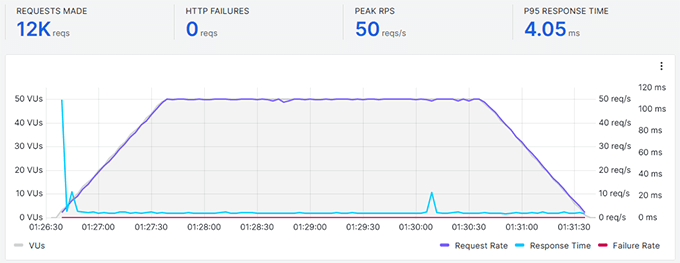
During K6 load testing, it handled 50 concurrent users with zero slowdowns.

Pressable stress test result

Global Response Time

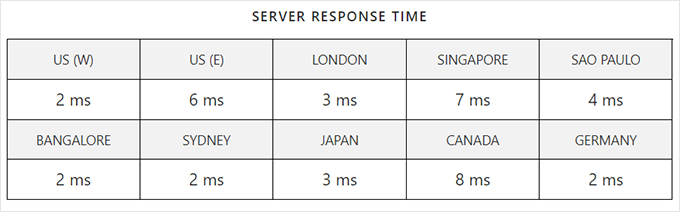
Pressable gave an incredible server response time from all geographic locations.

Pressable response time

My Experience: I liked the ease of use and smooth onboarding experience, which add great value for beginners who need premium performance without hiring a developer. Pressable offers a fully managed WordPress environment that works well out of the box. The performance, support, and security are top-notch, and it’s one of the few platforms where I rarely need to touch caching or CDN settings. See my team’s detailed Pressable review for more analysis.

9. Kinsta

Quick info: 🔹Starting from: $35/mo 🔹Free Domain: No 🔹Sites Allowed: 1+ 🔹Disk Space: 10GB–100GB SSD

I’ve used Kinsta on several business and client sites, and it’s easily one of the smoothest cloud hosting experiences I’ve had. Everything, from speed to support, just works.

Kinsta runs on Google Cloud’s premium-tier network, and they handle all the heavy lifting: caching, security, backups, staging, and even performance monitoring. I didn’t have to configure anything — my sites were blazing fast out of the box.

What really stood out to me was their dashboard. It’s modern, easy to navigate, and built specifically for WordPress users. In seconds, I could switch PHP versions, clear the cache, and manage redirects.

If you want premium WordPress hosting without dealing with technical maintenance, Kinsta is one of the best investments you can make. It’s priced higher, but the performance and premium service justify the cost.

Kinsta Logo
Performance
Uptime: 100%
Page load time: 635 ms
Avg. Response Time: 101 ms
WPBeginner Rating: A
User Rating: 4.9/5
Discount: Kinsta Coupon
Best For: Premium managed WordPress performance 💎

Pros of Using Kinsta

  • Built on Google Cloud’s premium tier with global CDN
  • Lightning-fast out of the box — no caching plugins needed
  • Daily backups, one-click staging, and free hack fixes
  • Excellent support from actual WordPress engineers
  • Easy-to-use MyKinsta dashboard with tons of features

Best For

  • Site owners who want high-end, fully managed WordPress hosting
  • Businesses, agencies, and professionals who value speed and uptime
Kinsta Performance Tests

Uptime

Every site I tested on Kinsta had 100% uptime for the whole duration of monitoring.

Kinsta Uptime Test

Page Load Speed

With their built-in caching and CDN, I saw average load times under 635 ms — no optimization required.

Kinsta Speed Test

Stress Testing

Even under 50 simultaneous users in my K6 tests, Kinsta held up with consistent response times and no server strain.

Kinsta stress test results

My Experience: I enjoyed testing Kinsta for internal projects and staging websites. It offers a clean and intuitive dashboard, which makes managing your website so much easier. It’s fast, secure, and supported by people who truly understand WordPress. If your business depends on uptime and speed, Kinsta is worth every dollar.

10. Google Cloud

Quick info: 🔹Starting from: Pay-as-you-go 🔹Free Domain: No 🔹Sites Allowed: Unlimited 🔹Disk Space: Fully Scalable

I’ve used Google Cloud to host custom WordPress applications that needed full flexibility. It’s the same infrastructure used by SiteGround, Kinsta, and other major hosts, and it’s incredibly fast when set up correctly.

But I wouldn’t recommend it to beginners. You’re responsible for everything, including server setup, WordPress installation, caching, firewalls, and backups. When I used it for a high-scale project, I had to spend hours tuning the stack to get the performance right.

However, once it’s configured properly, the performance is incredible. I was able to scale up and down depending on traffic spikes, and I had full access to logs, resource usage, and network settings.

If you’re a developer or know your way around the terminal, Google Cloud is one of the most powerful platforms out there. Just know that going in, there’s no hand-holding.

As an alternative, I would recommend SiteGround, which is hosted on the Google Cloud platform but will take care of everything for you behind the scenes.

Google Cloud
Performance
Uptime: 100%
Page load time: 415 ms (LEMP stack)
Avg. Response Time: 63 ms
WPBeginner Rating: B+
User Rating: 4.7/5
Discount: Free credits for new accounts
Best For: Advanced users & server controls 👨‍💻

Pros of Using Google Cloud

  • Same infrastructure used by SiteGround, Kinsta, and major apps
  • Unmatched flexibility for scaling and performance
  • Access to the full server stack and network settings
  • Pay-as-you-go pricing and generous free credits
  • Fast SSDs, load balancing, and global CDN options

Best For

  • Developers and agencies building custom WordPress stacks
  • Advanced users who want full server control and automation
Google Cloud Performance Tests

Uptime

My custom VM stack on Google Cloud maintained 100% uptime over 30 days of testing.

Google Cloud uptime test

Page Load Speed

After tuning the server, my site loaded in just 415 ms across global locations.

Google Cloud page speed test

Stress Testing

In my K6 tests, it handled 50 users with no timeouts, but only after I configured load balancing and caching manually.

Google Cloud stress test result

My Experience: I’ve used Google Cloud for projects that needed complete freedom, and I love the power and flexibility it offers. But unless you’re comfortable managing Linux servers, I’d stick with a managed cloud host from this list, such as SiteGround.

11. AWS (Amazon Web Services)

Quick info: 🔹Starting from: Pay-as-you-go 🔹Free Domain: No 🔹Sites Allowed: Unlimited 🔹Disk Space: Fully Scalable

I’ve hosted WordPress on AWS (Amazon Web Services) for projects that needed enterprise-level flexibility. It’s one of the most powerful cloud platforms in the world, but it comes with a steep learning curve, which is why I wouldn’t recommend it to beginners.

You can run WordPress on Lightsail instances and select virtual machines for your own requirements. You will be responsible for load balancing, caching, scaling, and security. That’s a lot of moving pieces, and in my experience, it requires hands-on setup and regular monitoring.

Once properly configured, the speed and reliability are outstanding. I’ve seen it run traffic-heavy campaigns and product launches without breaking a sweat, but only because everything was optimized in advance.

If you’re a developer or agency managing custom infrastructure, AWS gives you unmatched flexibility. But for most WordPress users, I’d recommend a managed cloud host instead.

AWS Cloud (Amazon Web Services)
Discount: AWS Free Tier offers a free trial
Uptime: 100%
Page load time: 684 ms
Avg. Response Time: 109 ms
WPBeginner Rating: B+
User Rating: 4.6/5
Discount: AWS Free Tier offers free trial
Best For: Custom enterprise-grade WordPress setups 🏗️

Pros of Using AWS

  • Extreme flexibility for custom WordPress infrastructure
  • Highly scalable with advanced security and monitoring
  • Used by large enterprises and SaaS apps
  • Global availability zones and CDN integration
  • Free tier allows you to test with no cost for 12 months

Best For

  • Developers and system admins managing high-scale WordPress environments
  • Agencies and teams needing full-stack control and automation
AWS Performance Tests

Uptime

I set up monitoring just before stress-testing my AWS test site. The site remained up during the testing with 100% uptime.

AWS uptime

Page Load Speed

My test site loaded in 684 ms on average without any caching or performance optimization.

AWS speed test result

Stress Testing

In my K6 load test, AWS held up under 50 concurrent users, but I had to set up caching and optimization.

AWS stress testing result

My Experience: AWS provides flexibility and resources, but you will need to spend time configuring and managing it. It’s not beginner-friendly, but it delivers the power and reliability I expect from enterprise hosting for large, mission-critical sites. For those who want to try it out, my team has prepared a step-by-step beginner-friendly guide for installing WordPress on AWS.


My Verdict: Best Cloud Hosting Providers for WordPress

After testing dozens of platforms and helping site owners scale with confidence, these are the top 3 cloud hosting providers I recommend, based on real-world usage, performance, and value.

SiteGround

Best Overall Cloud Hosting: SiteGround

I use SiteGround for several businesses that need speed, uptime, and easy management. It runs on Google Cloud infrastructure and works great for blogs, business sites, and online stores.

Hostinger

Best Budget Cloud Hosting: Hostinger

If you’re on a tight budget but still want fast, cloud-powered WordPress hosting, Hostinger is a solid pick. Their dashboard is beginner-friendly, and support has always been helpful in my experience.

Bluehost logo

Best for Premium Cloud Features: Bluehost Cloud

Bluehost’s new cloud offering brings premium speed, built-in optimization, and scalability. It’s a great choice if you want performance without going full developer mode.

FAQs About Cloud Hosting for WordPress

Choosing a cloud hosting provider can be challenging, especially with so many technical terms and features.

Here are some common questions I get from readers and clients when they’re making the switch to WordPress cloud hosting, along with my honest answers.

What is cloud hosting for WordPress?

Cloud hosting means your website is hosted on a network of virtual servers instead of one physical server. It offers better speed, uptime, and scalability, especially for growing WordPress sites.

Is cloud hosting better than shared hosting?

Yes. Cloud hosting offers faster performance, higher uptime, and more flexibility than shared hosting. If your site is growing or you want a better experience, cloud hosting is a smart upgrade.

Do I need to be a developer to use cloud hosting?

No, not if you choose a managed cloud hosting provider like SiteGround, Hostinger, or Bluehost Cloud. They handle the technical stuff for you. However, platforms like AWS and Google Cloud are more advanced and require technical knowledge.

Can I switch to cloud hosting without losing my site?

Yes. Most providers offer free or assisted migration to help you move your WordPress site safely to their cloud platform. I’ve done this for many client sites without any downtime.

What’s the best cloud hosting for WordPress?

My top picks are SiteGround for all-round performance, Hostinger for budget users, and Bluehost Cloud for premium features with ease of use.

Want to Learn More About WordPress Hosting?

These guides can help if you’re still exploring your options or want to better understand how WordPress hosting works:

I hope this guide helped you find the right cloud hosting for your WordPress site. If you still have questions or need help deciding, feel free to leave a comment or reach out — I read every message, and I’m happy to help however I can.

If you liked this article, then please subscribe to our YouTube Channel for WordPress video tutorials. You can also find us on Twitter and Facebook.

The post Best Cloud Hosting Providers for WordPress in 2025 (Expert Pick) first appeared on WPBeginner.


from WPBeginner https://ift.tt/GYKHxC1
More links is https://mwktutor.com