Ever looked at the search filters on Amazon or Airbnb and wished you could make the content on your own website just as easily discoverable?
Imagine if your visitors could simply click a few options in the search filter, like “Price: Low to High,” “Rating: 4 Stars,” or “Color: Blue”… and instantly, the perfect results appear.
Sadly, most filtering tools on the market are either frustratingly complicated, require hiring a developer to set up, or are strictly limited to WooCommerce stores.
It simply shouldn’t be this hard to help your visitors find the content they are looking for.
That’s why today, I’m excited to share the launch of WPFilters, a game-changing plugin that makes adding “Amazon-style” faceted search to WordPress completely seamless.
We built this tool to help you stop losing visitors who can’t find what they need. Whether you have a blog, an eCommerce store, or a directory, WPFilters allows your users to filter posts, products, and custom content by categories, tags, custom fields, and more.
Think of it as the ultimate navigation upgrade that turns your WordPress site into a professional, searchable database in minutes.
Background Story – Why WPFilters?
A few years ago, we acquired SearchWP to fix the broken default WordPress search. Today, it helps over 50,000 site owners show the right results to their audience.
As the community grows, we quickly noticed a consistent pattern in the feedback.
While the search bar was now finding all the right content, our users wanted a way to help their site visitors narrow down those results.
For example, when a visitor searches for a broad term like “breakfast recipes” on a blog or “shoes” on a store, they might get hundreds of results. Users would write to us asking, “How can I let my visitors filter these results and help them get what they look for?”
Most filtering tools on the market expect you to hire a developer just to get them working on your site. That’s when I realized faceted search had become a ‘premium’ feature—something only big companies with big budgets could realistically offer.
That didn’t sit right with me. I believe that powerful website features should be accessible to everyone, not just those who can code.
So, I sat down with the team and set a challenge: Let’s build a filtering solution that is just as powerful as Amazon’s, but as easy to use as the WordPress Block Editor.
That’s exactly what WPFilters delivers.
Here’s the overview of WPFilters. Watch the video:
What is WPFilters?

WPFilters is a powerful WordPress filtering plugin that allows you to create advanced search filters for your website without writing complex code.
In the developer world, this is called “faceted search.” But for you and your visitors, it simply means instant clarity.
WPFilters lets you build custom filter sets based on categories, tags, or custom data, and place them anywhere on your site. This allows your visitors to drill down through your content to find exactly what they need in seconds.
Instead of scrolling through pages of irrelevant results, they can simply tick a box for “Category,” slide a bar for “Price,” and so on.
Whether you are using the default WordPress search or the powerful SearchWP engine, WPFilters creates the frontend interface that makes browsing your site a joy.
Here is what makes it special:
1. Create “Amazon-Style” Filters with Multiple Input Types
If you look at major sites like Amazon or Airbnb, you’ll notice how easy it is to use their filtering options to discover the right results.
They use radio buttons for single-choice selections, checkboxes for multiple-choice selections, and visual sliders for price ranges.
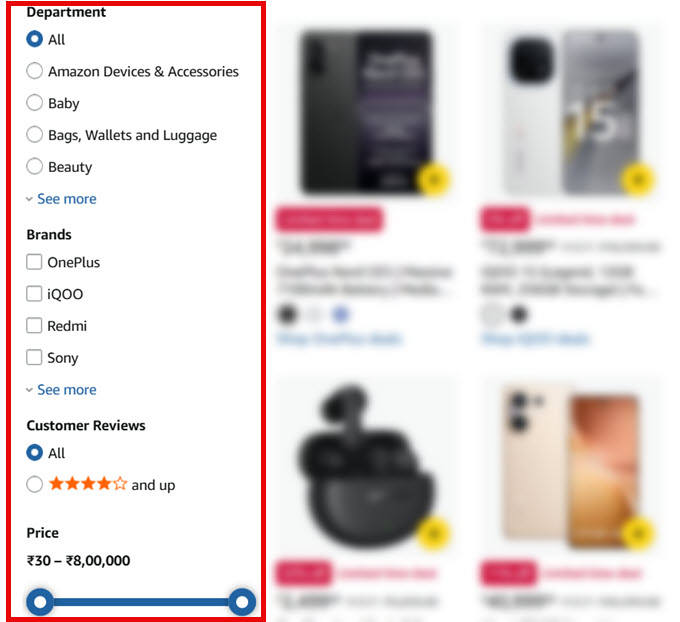
This is exactly the experience WPFilters brings to your site. You can assign the perfect input control to match your data, making your site feel like a professional, custom-coded app.
For publishers and blog owners, this goes far beyond what standard categories can do. For example, you can allow your visitors to combine criteria like finding a “Vegan” recipe that is also “Under 30 Minutes” and has a “5-Star Rating.”
This kind of detailed drill-down helps your readers find exactly what they want instantly, keeping them on your site longer.
WPFilters comes with a wide variety of input types to suit different needs:
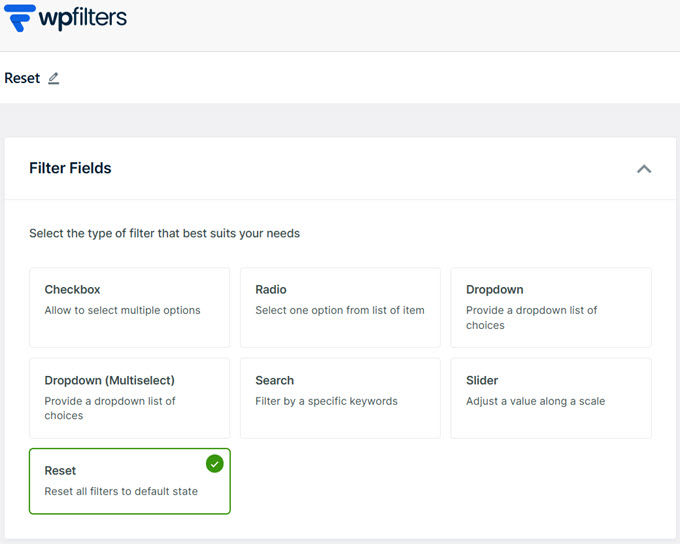
- Checkboxes: allow users to select multiple options at once (great for categories or tags).
- Radio Buttons: ideal for when you want users to make a single, exclusive choice.
- Dropdowns (Single & Multi-Select): save screen space while offering powerful sorting options.
- Range Sliders: a visual way to filter numeric data like price, weight, or size.
- Search Bar: let users filter the results list by specific keywords.
- Reset Button: a one-click way for users to clear all filters and start fresh.
Filter by Anything – Categories, Tags, Custom Fields & More
Your WordPress site is full of valuable data, but most of it is hidden from your visitors. Usually, you can only link to a generic Category archive, and that’s it. If you want to let users filter by something specific, like an Author or a Custom Field, you are usually out of luck.
WPFilters unlocks all that data and turns it into clickable filters. You aren’t limited to just standard categories; if the data exists in WordPress, you can filter by it.
This includes standard categories, tags, or any custom taxonomy (like product categories, genres, and more).
If you use Advanced Custom Fields to store extra details WPFilters automatically detects these fields and lets you use them as filters instantly.
Display Filters Anywhere with Flexible Embedding Options
Every WordPress site is built differently. Some of you love the modern Block Editor, while others prefer page builders like SeedProd or Divi. We built WPFilters to fit seamlessly into your existing workflow, no matter how your site is set up.
Once you have configured your filters, you have complete freedom over where to display them. If you use the WordPress Block Editor (Gutenberg), simply search for the WPFilters Elements block and drop it anywhere on your page. It integrates natively with the editor settings.
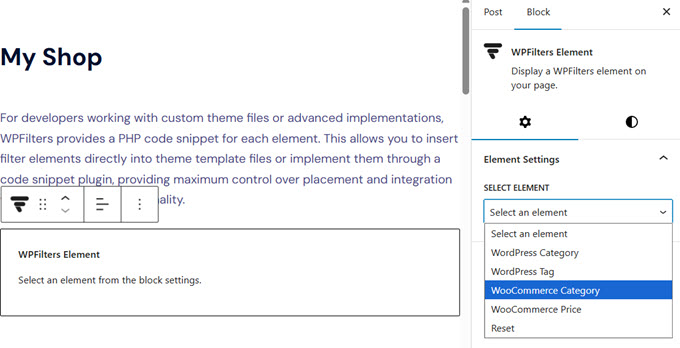
Alternatively, if you use page builders, like SeedProd or want to use Classic Editor, you can use the unique shortcode provided for each filter. Just copy and paste it wherever you want to embed it.
If you’re a developer, WPFilters also gives you access to ready-to-use PHP snippet so you can hard-code filters directly into your template files.
Smart Control Over User Experience (UX)
If a filter list is too long or shows options that have no results, it can actually frustrate your visitors. WPFilters comes with several smart controls to ensure your filters look clean and professional.
You have full control over the behavior and layout of your filter elements:
- Collapsible Sections: If you have long lists of filters, you can make the sections collapsible. This saves valuable screen space, especially on mobile devices.
- Item Counts: Automatically display the number of results next to each filter option (e.g., “Marketing (12)”), so users know exactly how many posts exist before they click.
- Hide Empty Options: You can choose to hide options that have zero results. This prevents the annoying experience of a user clicking a category only to see a “No results found” message.
- “See More” Links: Keep your sidebars tidy by showing only the first few options and hiding the rest behind a “See More” link.
- Horizontal Layouts: Instead of a standard vertical list, you can display checkboxes or buttons side-by-side, which is perfect for top-bar filters.
Built by the Team Behind SearchWP
WPFilters is built by the same team behind SearchWP, the leading search plugin trusted by thousands of WordPress website owners.
For years, SearchWP has been the gold standard for fixing WordPress search relevance (the backend). We helped you ensure that when a user searches for “blue shoes,” they actually find blue shoes.
But we realized that finding the right results is only half the battle. Presenting them in a way that is easy to browse is just as important.
That’s why we built WPFilters.
We wanted to bring the same level of code quality and reliability that you expect from SearchWP to the frontend of your site. While WPFilters works beautifully with the default WordPress search, it is designed to be the perfect companion for SearchWP.
Together, they give you a complete, enterprise-grade search experience—improving both relevance and usability—without the need for expensive SaaS subscriptions or custom development.
What’s Coming Next?
This launch is just the beginning.
We are truly building something special here, and we want you to be a part of it. Our goal is to make WPFilters the best filtering solution for WordPress, and the best way to do that is by listening to you.
We have an exciting roadmap ahead, but we want to ensure we are building exactly what you need. If you have ideas for new filter types, integrations, or features that would make your life easier, please send us your suggestions.
We are listening, and we look forward to continuing to serve you for years to come.
Yours Truly,
Syed Balkhi
Founder of WPBeginner
The post Introducing WPFilters: The Easiest Way to Add Advanced Search Filtering to WordPress first appeared on WPBeginner.
from WPBeginner https://ift.tt/LYv8Vy3
More links is https://mwktutor.com

No comments:
Post a Comment